











Detect Security Issues Faster using the Intune Antivirus Agent Status Report
Key Takeaways
- View the antivirus agent status and overall protection health of all managed devices.
- Check the status of Real-time Protection, Network Protection, and Tamper Protection across devices.
- Easily detect unhealthy devices along with the associated user and severity level for faster remediation.
- Use built-in filtering, searching, sorting, and interactive pie chart visualizations to analyze antivirus status efficiently.
- Perform supported remote actions directly from the report to help resolve security issues on affected devices.
Let’s check the Antivirus Agent Status Intune Report available in Intune admin center. The Antivirus agent status report provides the agent status of your organization’s devices. The report is available from the primary Microsoft Defender Antivirus workload, and provides filtering, searching, paging, and sorting.
Table of Content
Table of Contents
Detect Security Issues Faster Using the Intune Antivirus Agent Status Report
The report offers powerful filtering, searching, sorting, and export capabilities, making it easier for administrators to monitor endpoint security and quickly identify devices that require attention. If there are no devices that match the selected filters or no available report data, Intune displays a message indicating that there are no results to show.
- Sign in to the Microsoft Intune admin center
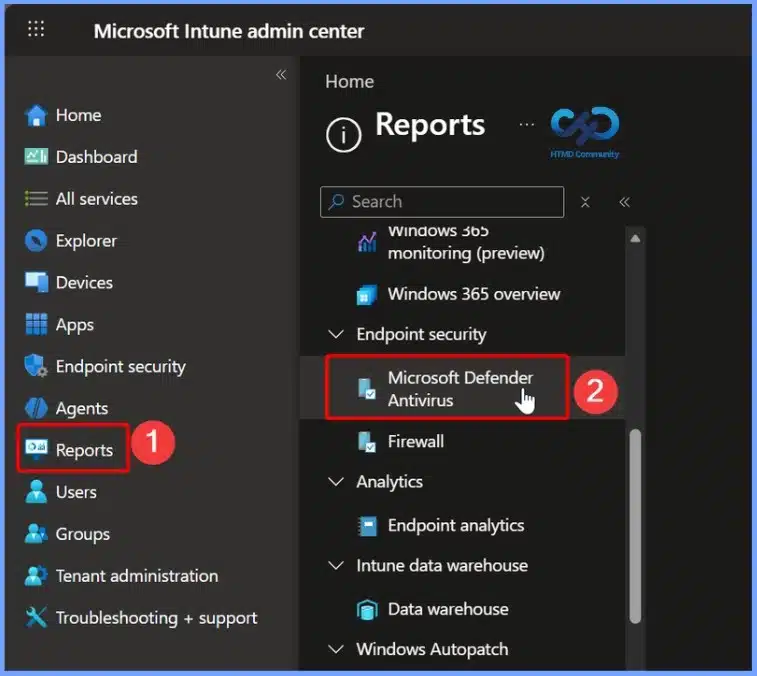
- Select Reports > Microsoft Defender Antivirus
- How Intune Device Reported Values Transform Reports and Troubleshooting Made Easier
- Intune Patch Compliance Reports in Details
- Updated Guidance for Interpreting Microsoft Intune Compliance Policy Reports
- Create Custom Dashboards Alerts and 30-Day Compliance Trends using MS Intune and Azure Log Analytics
Access the Antivirus Agent Status Report in Microsoft Intune
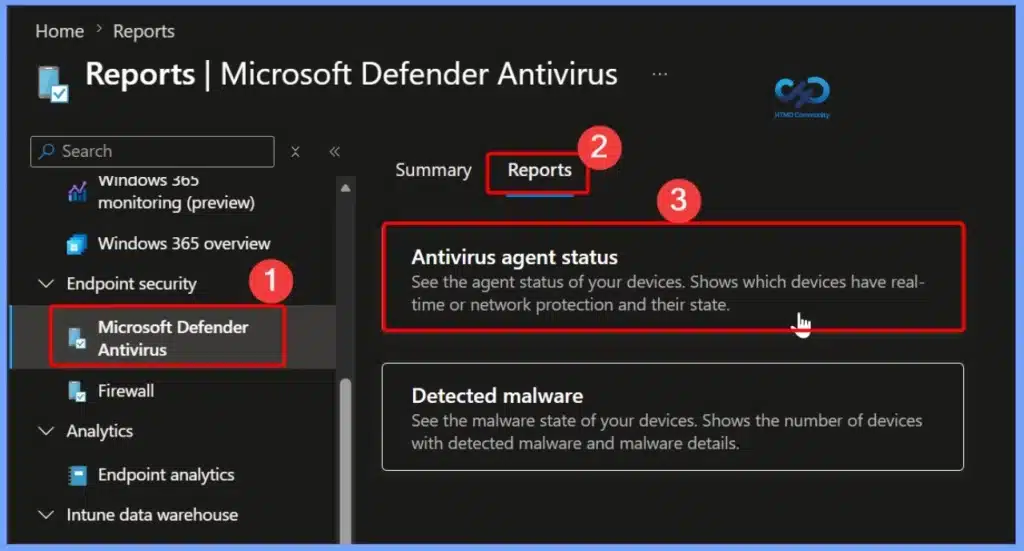
The Antivirus agent status report is available under the Microsoft Defender Antivirus workload in the Microsoft Intune admin center. From the Reports tab, you can open the Antivirus agent status report to view the health and protection status of managed devices. The report helps administrators monitor Microsoft Defender Antivirus, identify devices with security issues, and use built-in filtering, searching, sorting, and reporting capabilities to simplify endpoint security monitoring.
- Microsoft Defender Antivirus > Reports > Antivirus Agent Status
- See the agent status of your devices. Show which device have real-time or network protection and their state
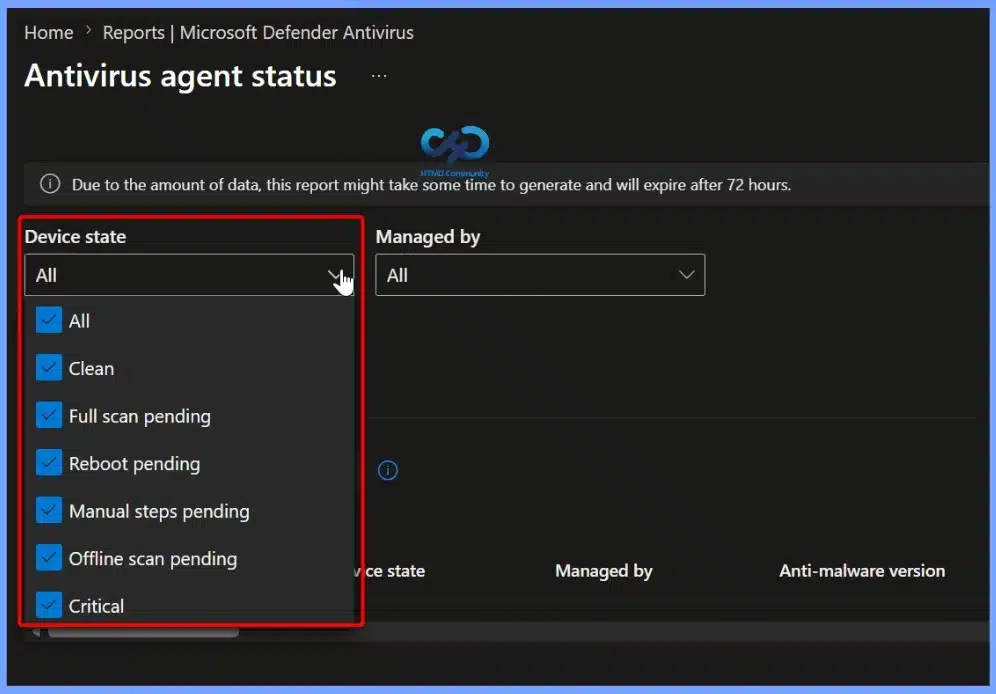
Filter Devices by Antivirus State for Faster Security Analysis
The Device state filter in the Antivirus agent status report helps administrators quickly narrow down devices based on their Microsoft Defender Antivirus health and protection status. This makes it easier to identify affected devices, prioritize remediation, and focus on systems that require immediate attention.
| Device State |
|---|
| All Clean Full scan pending Reboot pending Manual steps pending Offline scan pending Critical |
Filter Devices by Management Platform in the Antivirus Agent Status Report
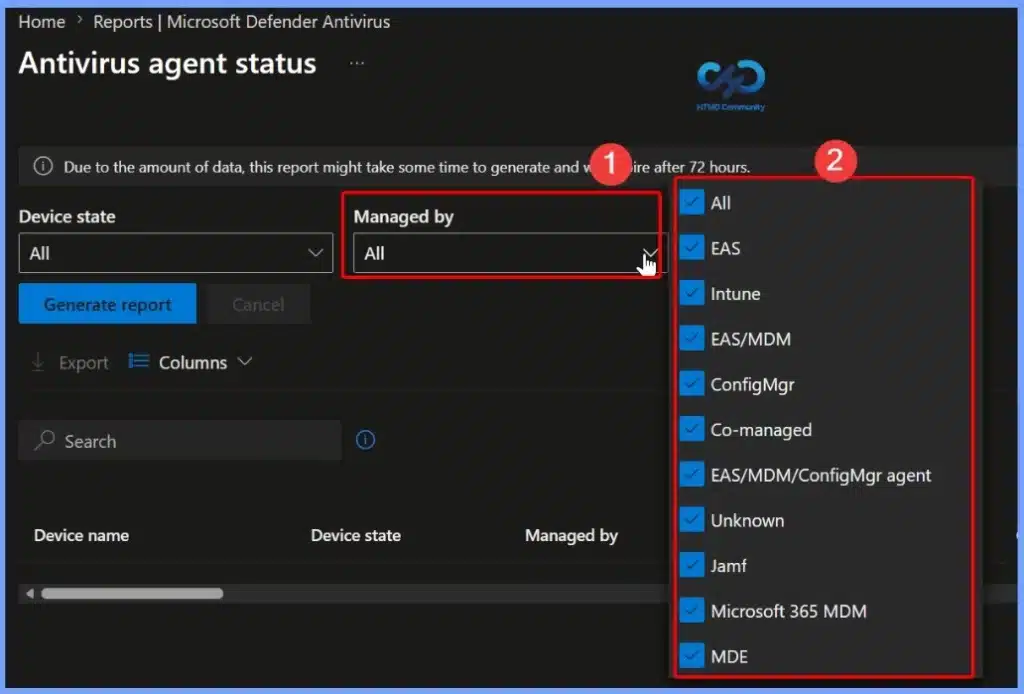
The Managed by filter lets administrators view devices based on their management platform, making it easier to analyze antivirus health across different management solutions. This helps you view devices by management type, making it easier to find and troubleshoot specific devices.
- All
- EAS
- Intune
- EAS/MDM
- ConfigMgr
- Co-managed
- EAS/MDM/ConfigMgr agent
- Unknown
- Jamf
- Microsoft 365 MDM
- MDE
Customize Report Columns to Display Relevant Antivirus Information
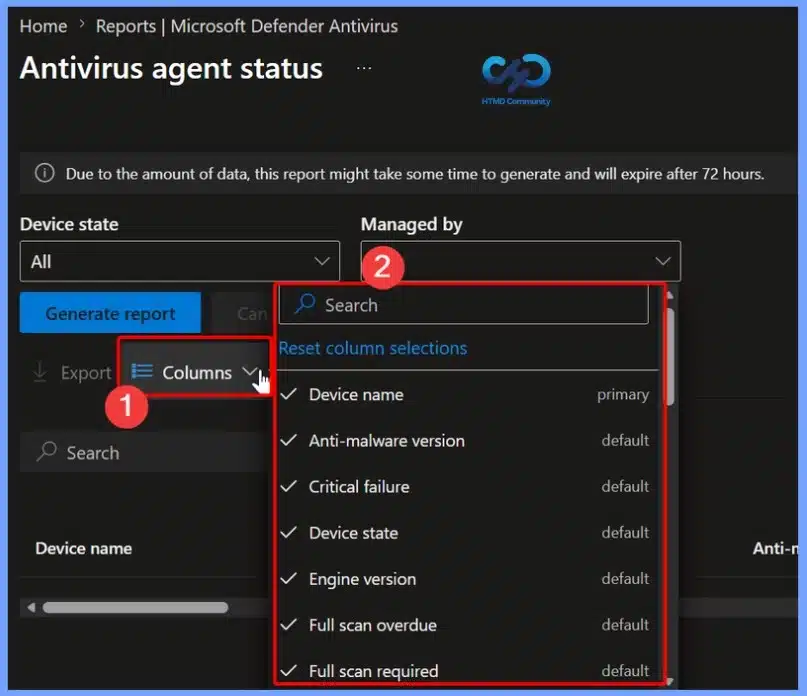
The Columns option lets you customise the information displayed in the Antivirus agent status report. You can add or remove columns such as Device name, Anti-malware version, Critical failure, Device state, Engine version, and Full scan status.
Generate the Antivirus Agent Status Report
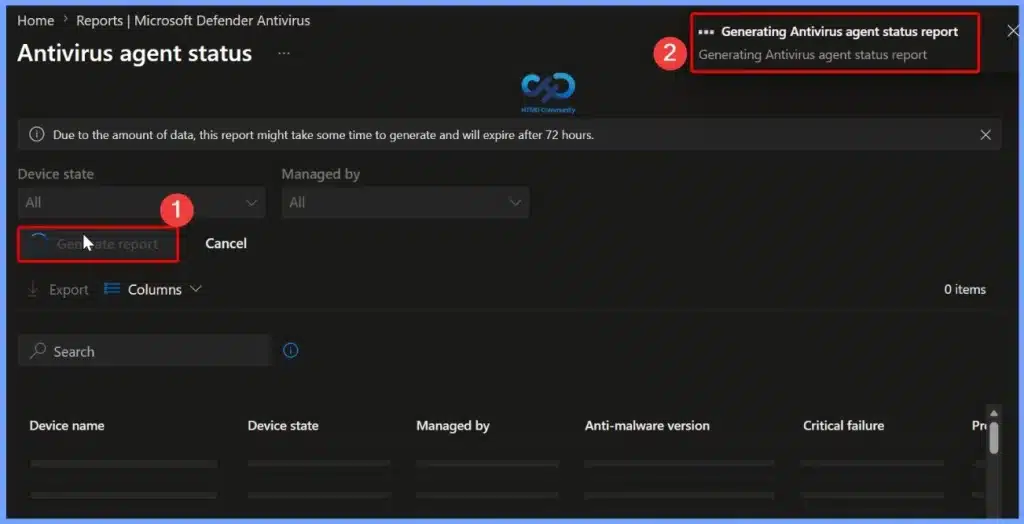
Click Generate report to create the latest Antivirus agent status report based on the selected filters. While the report is being prepared, Intune displays a notification indicating that the report generation is in progress. Once complete, the report provides detailed Microsoft Defender Antivirus health information for your managed devices, enabling you to review device protection status and identify any devices that require attention.
Review the Generated Antivirus Agent Status Report
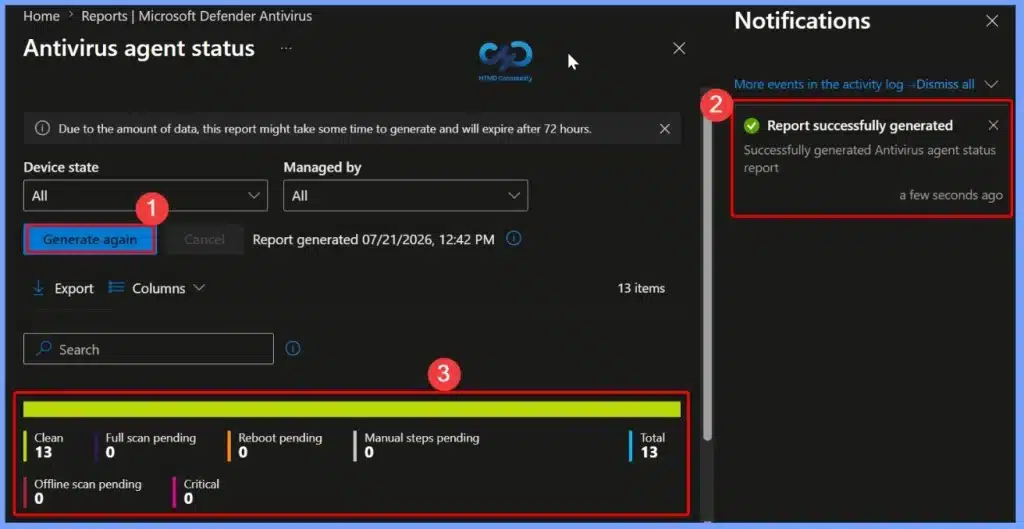
After the report is generated, Intune displays a confirmation notification indicating that the Antivirus agent status report is ready. You can review the report summary, which provides a visual breakdown of device health states such as Clean, Full scan pending, Reboot pending, Manual steps pending, Offline scan pending, and Critical.
Export the Antivirus Agent Status Report
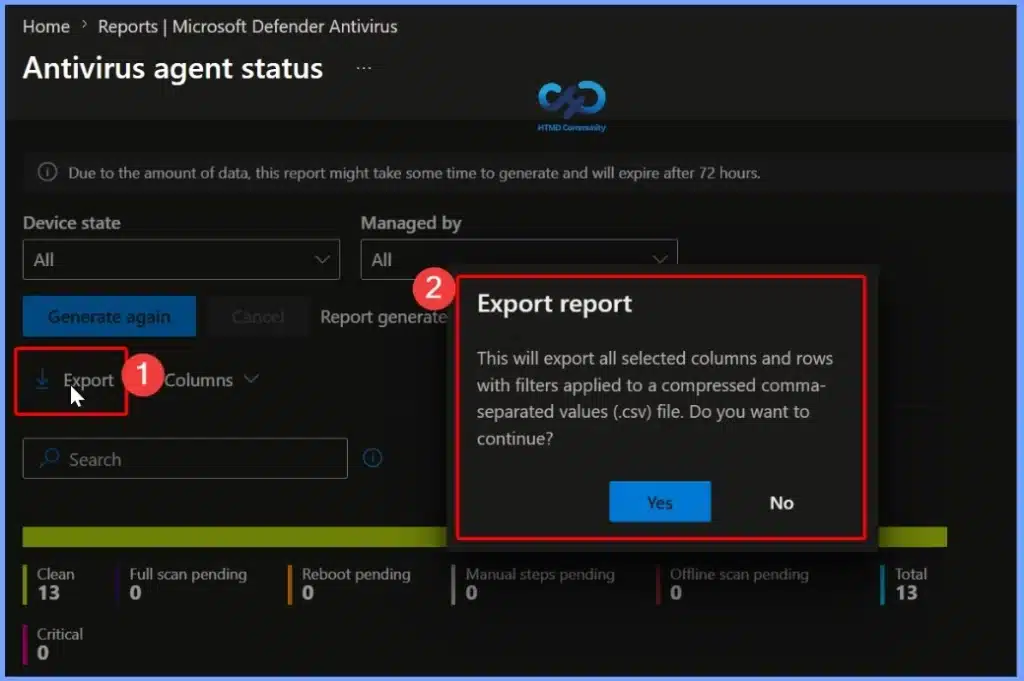
The Export option allows you to download the Antivirus agent status report as a CSV file for offline analysis and reporting. When you select Export, Intune prompts you to confirm the export and includes all selected columns, rows, and any applied filters in the downloaded file. This makes it easy to share report data, create custom reports, and perform further analysis using tools such as Microsoft Excel.
| Export report |
|---|
| This will export all selected columns and rows with filters applied to a compressed comma-separated values (.csv) file. Do you want to continue? |
Verify the Export Completion Notification
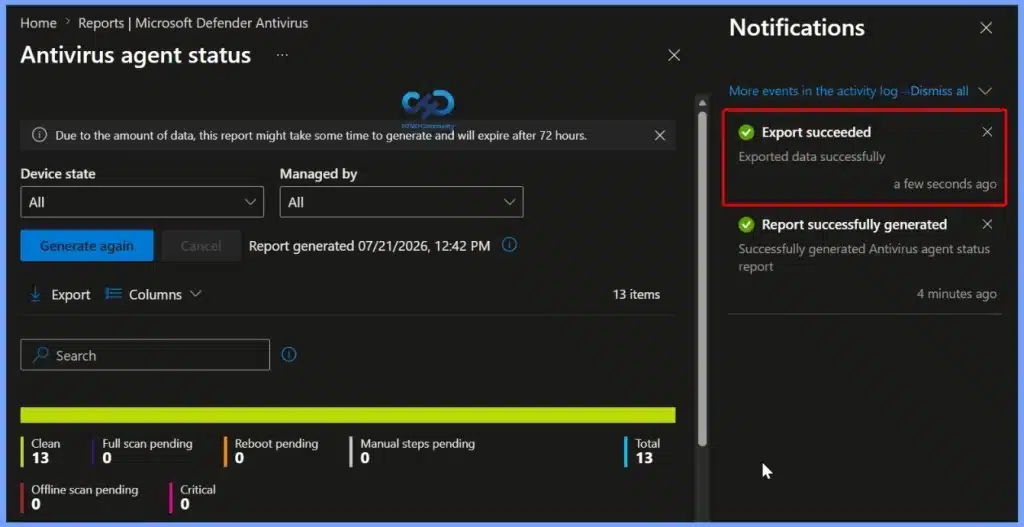
After the export is complete, Intune displays an Export succeeded notification in the Notifications pane, confirming that the report has been successfully downloaded. The exported CSV file contains all selected columns, rows, and applied filters, allowing you to review, analyze, and share the Antivirus Agent Status report outside the Intune admin center.
Resources
- Antivirus agent status – Intune report (Organizational)
- Intune Device Compliance Reports | Endpoint Manager
- Intune Co-management Eligibility Report | Endpoint Manager
- Intune Windows 10 MDM Firewall Status Report | Endpoint Manager
- Windows 10 Feature Update Intune Report | Endpoint Manager
Need Further Assistance or Have Technical Questions?
Join the LinkedIn Page and Telegram group to get the latest step-by-step guides and news updates. Join our Meetup Page to participate in User group meetings. Also, join the WhatsApp Community and the Whatsapp channel to get the latest news on Microsoft Technologies. We are there on Reddit as well.


Hello @Jitesh,
Does this Antivirus agent status report work for MacOS devices. the issue is none of the MacOS devices are showing under this report. Please help