







How to use New Try Again and Select Style Buttons in MS Paint Cocreator
Let’s discuss how to use New Try Again and Select Style Buttons in MS Paint Cocreator. Microsoft introduced new enhancement on Microsoft Paint. The new improvement can be explorer with Cocreator feature on MS Paint.
The new enhancement is now rolling out to Windows Insiders in the Beta and Release Preview Channels. New improvement available on Windows Insiders in the Canary and Dev Channels on Windows 11. The co-creator side panel is improved.
As you know that Microsoft Paint Cocreator leverages AI technology, specifically DALL-E, to assist users in generating artwork based on their descriptions. Cocreator is available on version 11.2309.20.0 or higher.
In this blog post, I will explain the new Try Again and Select Style Buttons in MS Paint Cocreator. Also, will discuss how to use this feature with Cocreator. Microsoft improved the Cocreator side panel user experience with a simplified and more intuitive layout.
Table of Contents
How to Use the New Try Again and Select Style Buttons in MS Paint Cocreator
As mentioned above, this feature has started rolling out to Windows Insiders. Currently, Windows 11 users can use this feature with Paint (version 11.2502.121.0). With this feature, MS Paint’s abilities are enhanced. AI abilities improve the Cocreator experience in Paint.
| New Feature in Cocreator |
|---|
| New Creativity Slider Available |
| Select style dropdown |
| Introduced Try again button |
| New Apply Button is Available |
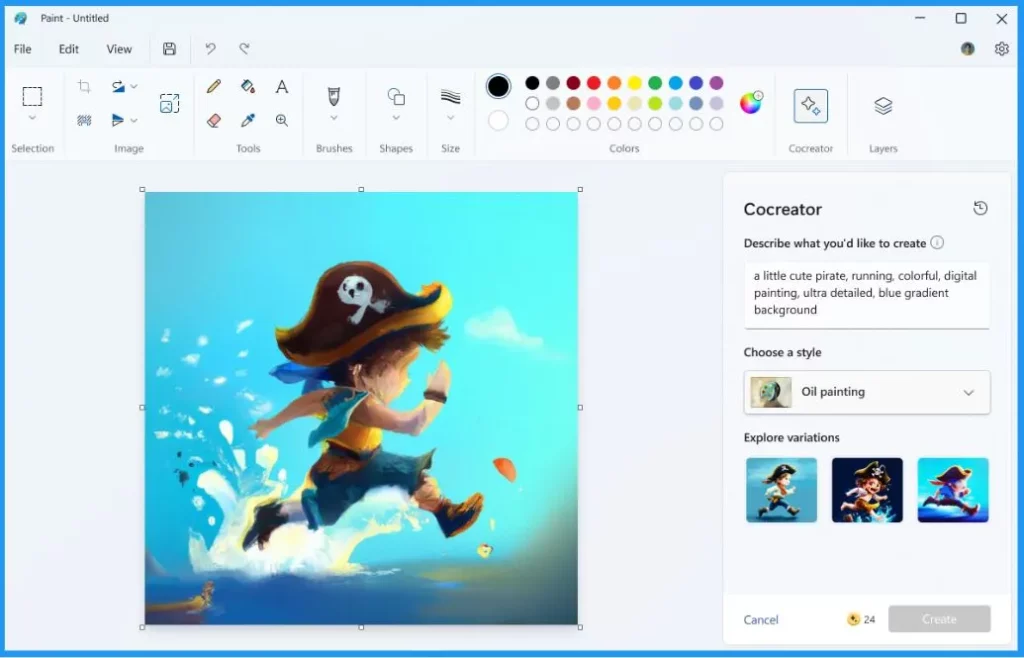
- MS Paint Image Creator Feature to Create Images using AI
- Resize an Image Using Paint and Photos Apps in Windows 11
- New MS Paint has AI Powered Fill and Erase Options
Steps to Use the New Try Again and Select Style Button
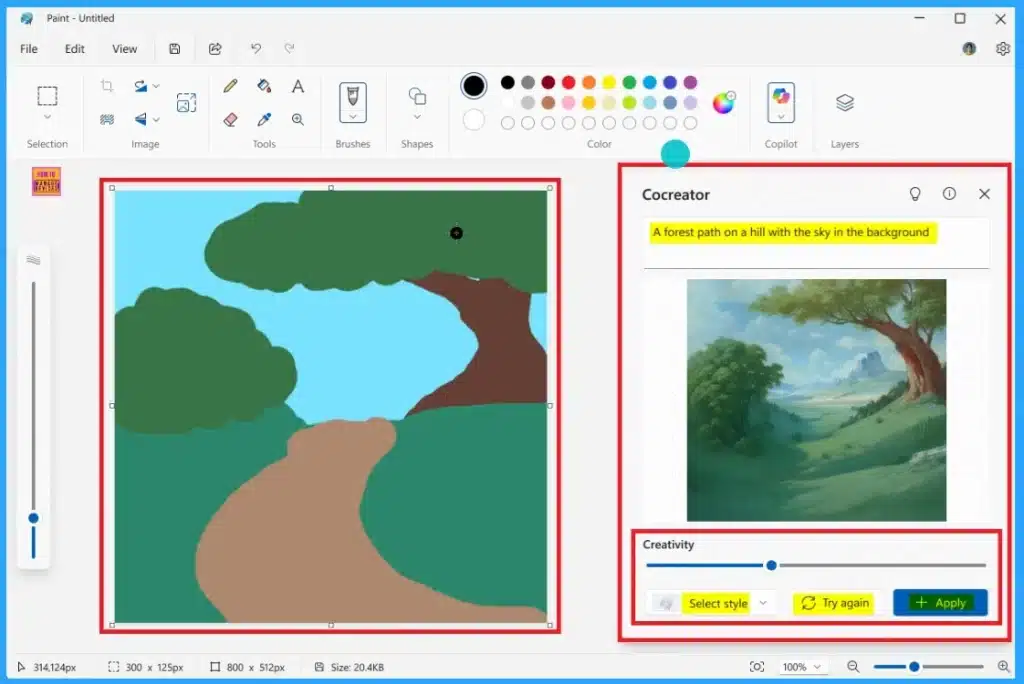
To start the creation, open MS Paint and click on the Cocreator in the Copilot menu. With Cocreator, you can easily create images by entering a description in the Cocreator Text box. In the Text box, describe what you would like to create.
- Using a mouse or pen, you can start drawing on the canvas to generate the artwork with AI.
- On the Cocreator, you can see the new features like the Creativity slider with Select style and the Try again button
- With the Try again button, you can generate a new version of the image
- And Apply button can be used to apply the generated content to the Paint canvas once you are satisfied with the final result.
Need Further Assistance or Have Technical Questions?
Join the LinkedIn Page and Telegram group to get the latest step-by-step guides and news updates. Join our Meetup Page to participate in User group meetings. Also, Join the WhatsApp Community to get the latest news on Microsoft Technologies. We are there on Reddit as well.
Resource

Anoop C Nair is Workplace Technology solution architect with 25+ years (as of 2026) of experience in global enterprise organizations such as JP Morgan, Capgemini, etc. Microsoft Certified Trainer (MCT). Microsoft MVP from 2015 onwards for consecutive 11+ years! He also conducts Intune and modern workplace tech training for enterprise organizations. He is Blogger, Speaker, and Founder of HTMD Community and HTMD Conference. His main focus is on Device Management technologies like Intune, Windows, Cloud PC. He writes about technologies like Intune, SCCM, Windows, Cloud PC, Windows, Entra, Microsoft Security.


Discussion