











Track User Authentication and Analyze Sign-in Logs in Microsoft Intune
Key Takeaways
- Monitor user and managed application sign-in activity from the Microsoft Intune admin center.
- View multiple sign-in report types, including Interactive, Non-interactive, Service Principal, and Managed Identity sign-ins (Preview).
- Analyze sign-in patterns for users, applications, and services over time.
- Track sign-in trends to understand authentication activity across your organization.
- Review sign-in status to identify successful and failed authentication attempts.
- Gain visibility into application and service authentication for improved monitoring and troubleshooting.
- Use sign-in reports to investigate access issues and support security and compliance efforts.
The Sign-in Logs Activity Reports in the Microsoft Intune admin center provide detailed insights into user, application, and service authentication activities. Administrators can monitor sign-in patterns, review authentication status, and analyze sign-in trends to better understand how managed resources are being accessed.
Table of Content
Table of Contents
Track User Authentication and Analyze Sign-in Logs in Microsoft Intune
To view Sign-in Logs Reports in the Microsoft Intune admin center, your organization must have a Microsoft Entra ID P1 or P2 license. Administrators must also be assigned an appropriate Microsoft Entra role, such as Global Administrator, Security Administrator, Security Reader, Global Reader, or Reports Reader, to access organization-wide sign-in logs. Standard users can view only their own sign-in activity, while administrative roles are required to monitor and investigate sign-in events across the tenant.
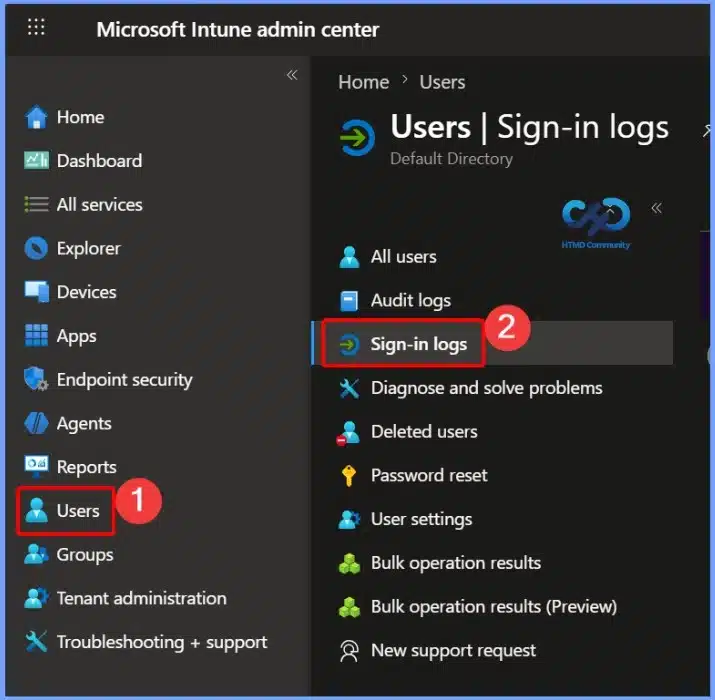
- Open the Microsoft Intune admin center.
- In the left navigation pane, select Users.
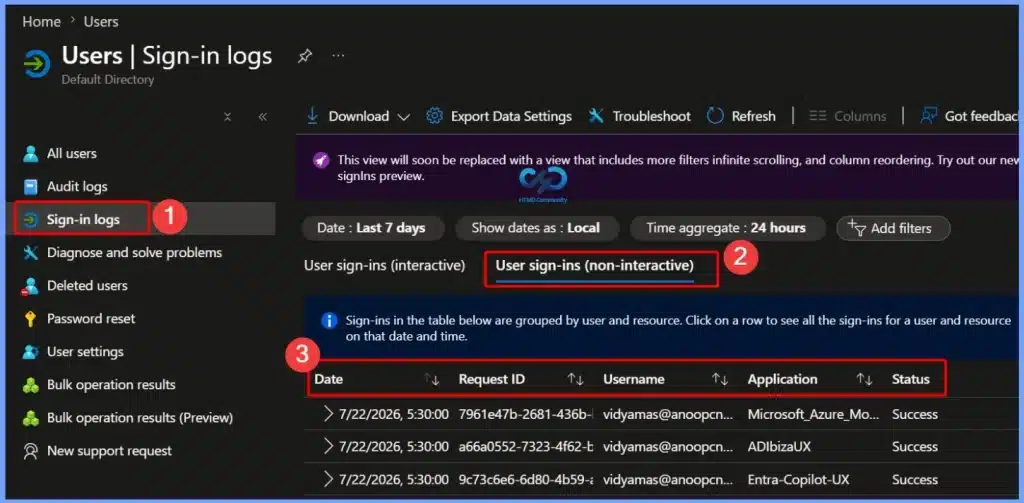
- Under Users, click Sign-in logs to open the Sign-in Activity Reports.
- Prohibit Access to Control Panel and PC Settings to Prevent Users from Modifying System Settings using Intune Policy
- Configure Windows Drive Access Restrictions using Intune Policy
- How to Configure Auto-Restart Warning Reminder Policy in Windows using Intune
- Intune User Policy Troubleshooting Tips For Prevent Changing Theme
- Intune Win32 App Deployment Troubleshooting Help Guide
- Intune Security Baseline Microsoft Defender Policy Troubleshooting Tips
- Troubleshoot Microsoft Edge Security Policy Deployment Issues
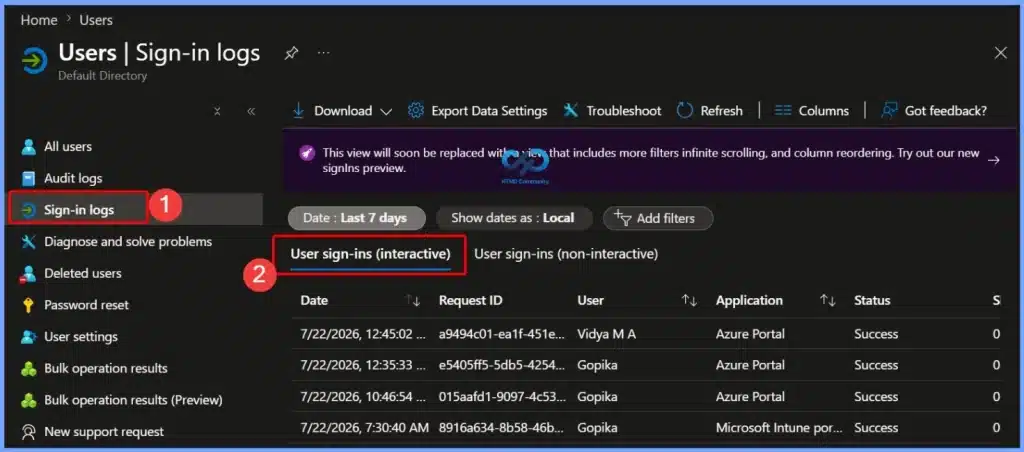
View Interactive User Sign-in Activity
The User sign-ins (interactive) tab displays authentication events where users actively sign in to applications by providing credentials or completing authentication prompts. It includes details such as the sign-in date and time, user name, application accessed, request ID, and sign-in status. This report helps administrators monitor user access, verify successful sign-ins, and troubleshoot authentication issues.
Filter Sign-in Logs by Date Range
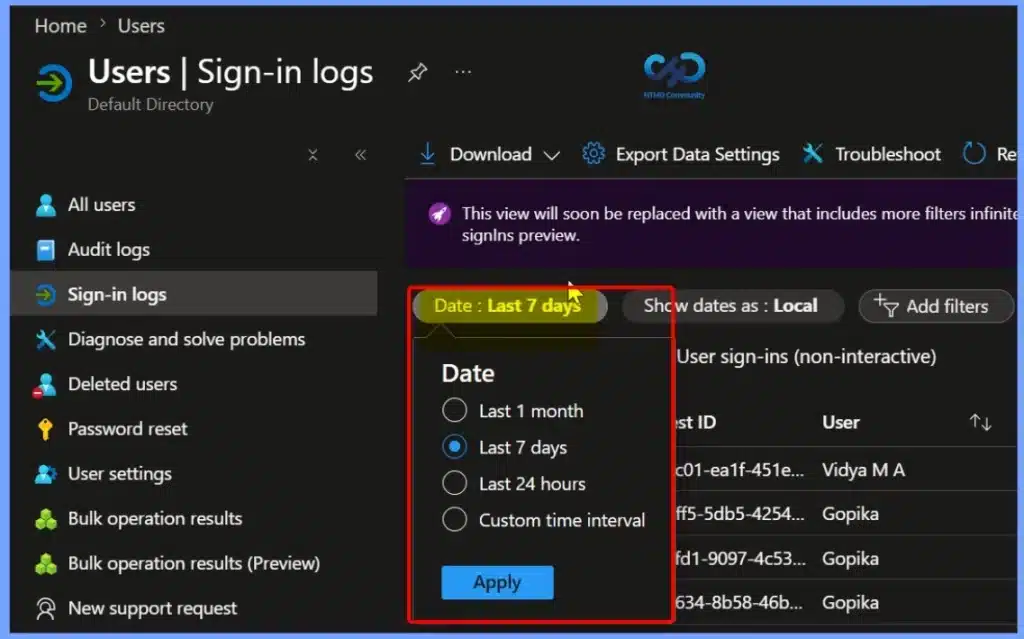
Use the Date filter to narrow the sign-in logs to a specific time period. You can view sign-in activity from the Last 24 hours, Last 7 days, Last 1 month, or specify a Custom time interval. Filtering the data helps administrators quickly analyze authentication events, investigate issues within a selected timeframe, and focus on relevant sign-in activity.
- Date : Last 7 days
- Last 1 months
- Last 7 days
- Last 24 hours
- Custom time interval
Choose the Time Zone for Sign-in Logs
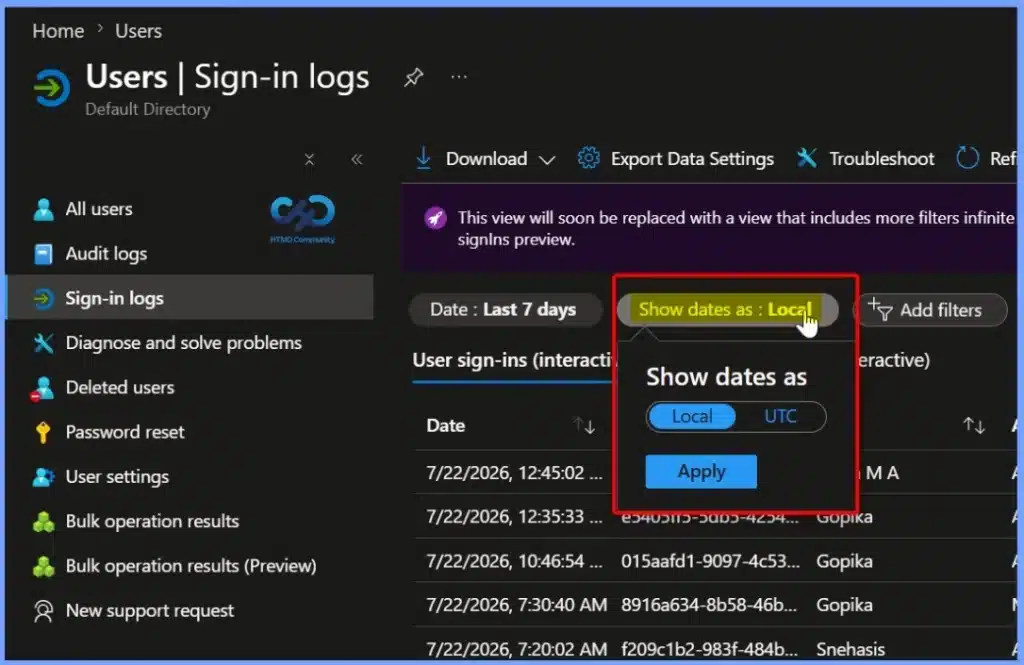
The Show dates as option lets you display sign-in timestamps in either Local time or UTC (Coordinated Universal Time). This setting helps administrators view authentication events in their preferred time zone, making it easier to analyze sign-in activity, troubleshoot issues, and correlate events across different regions or systems.
Filter Sign-in Logs Using Advanced Filters
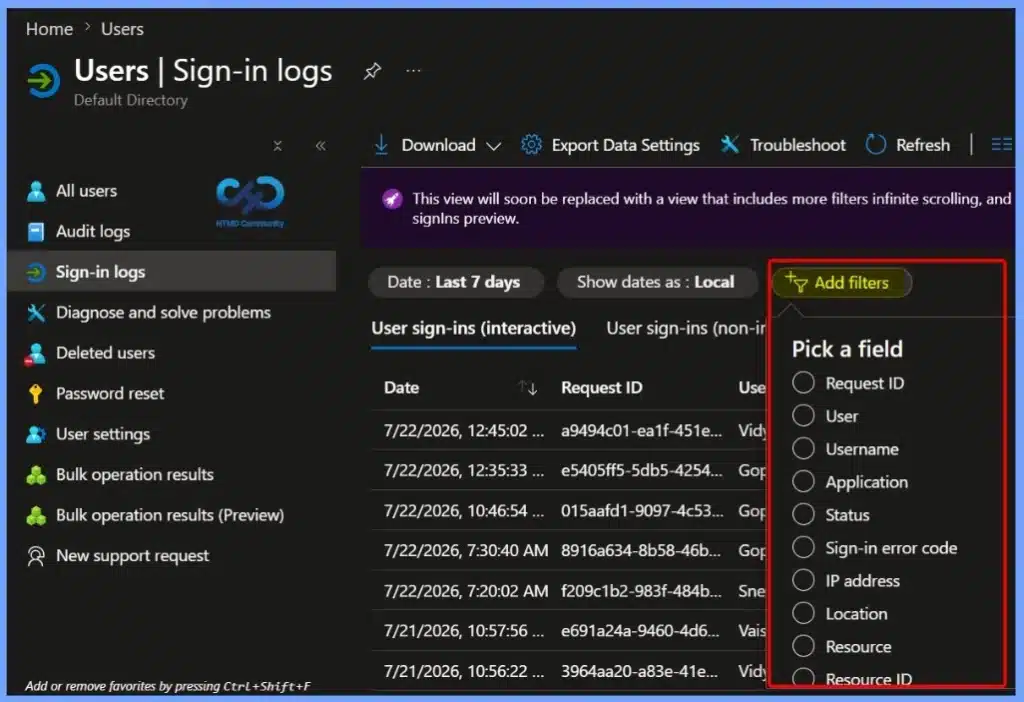
The Add filters option allows administrators to refine sign-in log results by specific criteria such as Request ID, User, Username, Application, Status, Sign-in error code, IP address, Location, and Resource ID. Applying filters helps quickly locate relevant authentication events, simplify troubleshooting, and investigate user sign-in activity more efficiently.
- Request ID
- User
- Username
- Application
- Status
- Sign-in error code
- IP address
- Location
- Resource
- Resource ID
- Client app
- Operating system
- Device browser
- Correlation ID
- Conditional Access
- Agent Type
- User type
- Cross tenant access type
- Home tenant ID
- Home tenant name
- Unique token identifier
- Resource tenant ID
- App owner tenant ID
- Resource owner tenant ID
- Sign-in identifier
- Session ID
- Autonomous system number
- IP address (seen by resource)
- Global Secure Access IP address
- Through Global Secure Access
- Microsoft Entra app authentication library
- Is CAE Token
- Flagged for review
- Token issuer name
- Token issuer type
- Incoming token type
- Authentication Protocol
- Client credential type
- Original transfer method
- Is Agent
- Token Protection – Sign In Session
- Token Protection – Sign In Session StatusCode
- Authentication requirement
Download Sign-in Logs for Offline Analysis
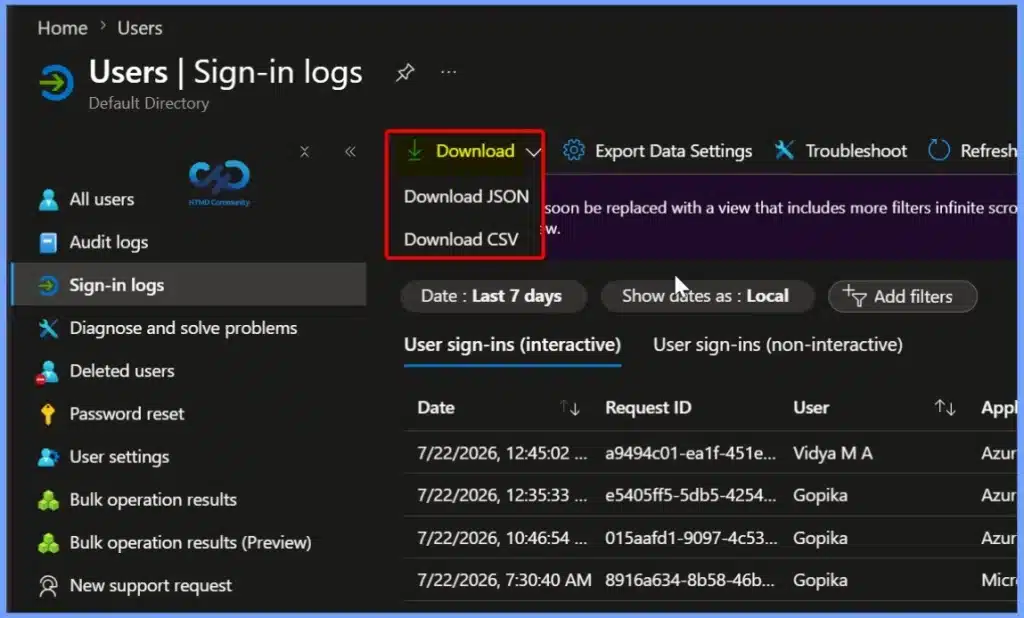
The Download option helps admins export sign-in logs in JSON or CSV format for offline review, reporting, and auditing. Exporting the data makes it easier to analyse authentication events, share logs with security teams, retain records for compliance, and perform advanced investigations using external tools.
| Download |
|---|
| Download JSON |
| Download CSV |
Configure Export Data Settings for Sign-in Logs
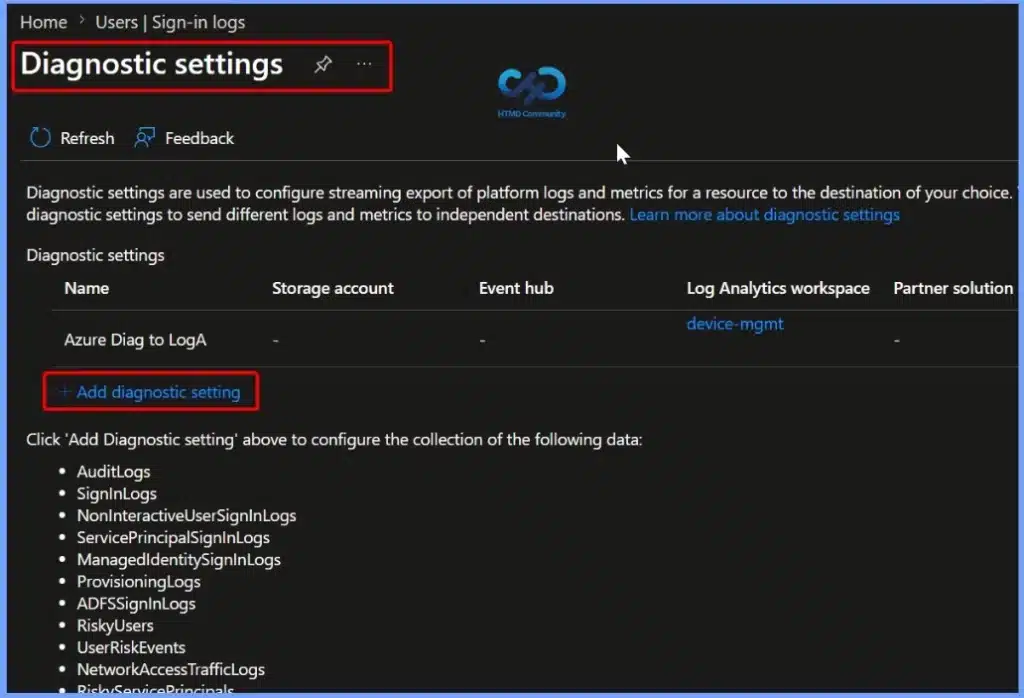
The Export Data Settings option opens the Diagnostic settings page, where administrators can configure the export of Microsoft Entra sign-in logs and audit logs to external destinations such as Azure Storage, Event Hubs, or a Log Analytics workspace. This enables long-term log retention, advanced analytics, security monitoring, and integration with SIEM solutions for auditing and compliance.
View Non-Interactive User Sign-in Activity
The User sign-ins (non-interactive) tab displays authentication events that occur without direct user interaction, such as token refreshes, background authentication, and application-to-service sign-ins. The report includes details like the Date, Request ID, Username, Application, and Status, helping administrators monitor background authentication, investigate sign-in issues, and analyze application access across the organization.
Group Non-Interactive Sign-ins by Time Interval
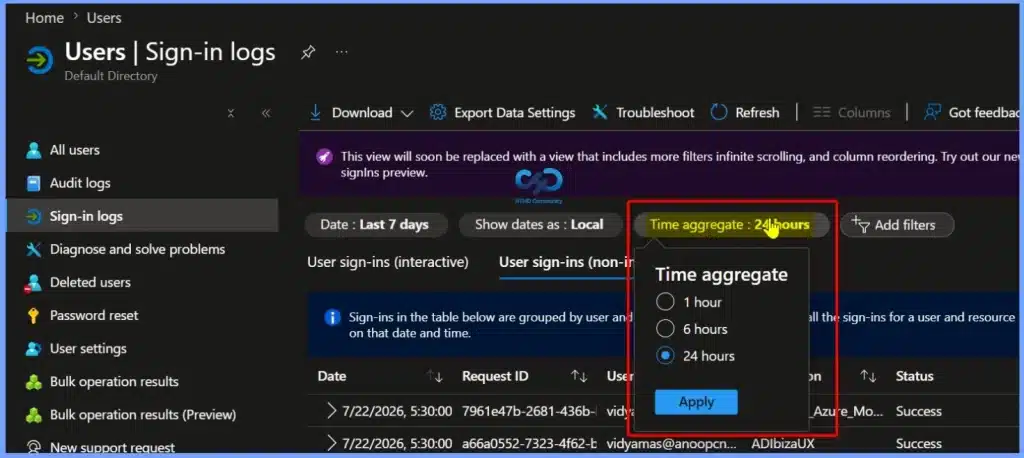
The Time aggregate option lets administrators group non-interactive sign-in events into 1 hour, 6 hours, or 24 hours intervals. Aggregating sign-in data helps identify authentication trends, simplify log analysis, reduce duplicate entries, and make it easier to investigate user and application activity over a selected time period.
| Time Aggregate |
|---|
| 1 Hour |
| 6 Hour |
| 24 Hour |
Troubleshoot Sign-in Issues with Sign-in Diagnostic
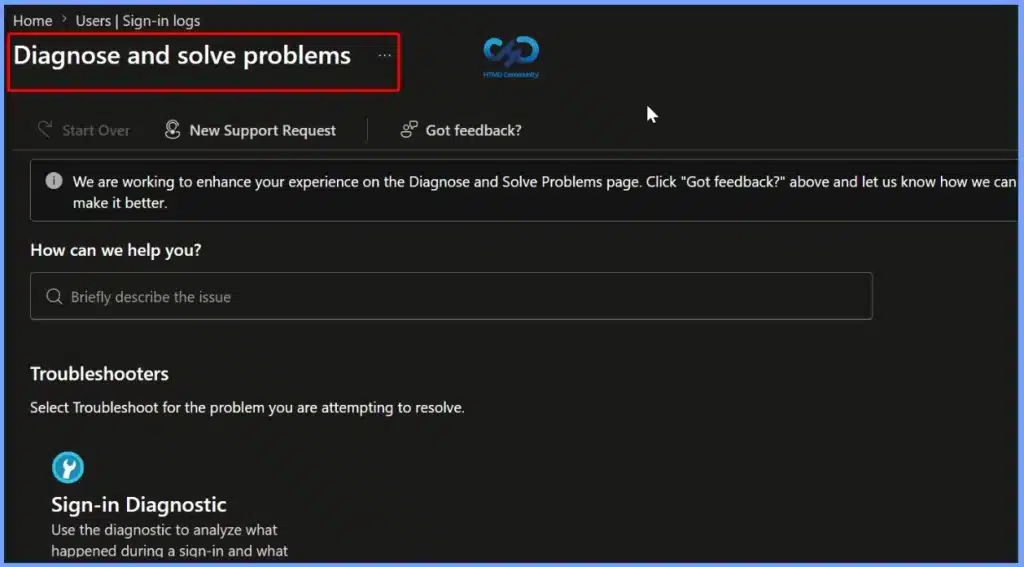
The Diagnose and solve problems page provides the Sign-in Diagnostic tool to help administrators identify and resolve authentication issues. You can describe the issue or use the available troubleshooting options to analyze sign-in failures, investigate authentication errors, and receive guided recommendations for resolving user access problems more efficiently.
Need Further Assistance or Have Technical Questions?
Join the LinkedIn Page and Telegram group to get the latest step-by-step guides and news updates. Join our Meetup Page to participate in User group meetings. Also, join the WhatsApp Community and the Whatsapp channel to get the latest news on Microsoft Technologies. We are there on Reddit as well.
Resources
- Azure Active Directory sign-in activity reports – preview
- Antivirus Agent Status Intune Report | Endpoint Manager
- Intune Co-Management Workloads Report | Endpoint Manager
- Windows 10 Feature Update Intune Report | Endpoint Manager
- How to Use Group Policy Analytics in Intune Portal | Endpoint Manager
- Learn How to Collect Windows 10 Diagnostics Information from Intune Portal | Endpoint Manager
- How to Check Intune Service Release Version | Endpoint Manager
- How to Export All Devices Data from Intune Portal | Endpoint Manager


Discussion