











How to Change User Access Control (UAC) Settings in Windows 10
In the post, you will learn how to change the user access control (UAC) settings in Windows 10. The User Access Control settings help prevent potentially harmful programs and software from making changes to your device. By default, UAC is set to notify you whenever apps try to make changes to your PC but you can change how often UAC notifies you.
The UAC User Experience
The dialog will ask “Do you want to allow this app to make changes to your device?”, then provide details about the app name and publisher along with a selection to choose Yes or No.
The consent prompt
- The consent prompt is presented when a user attempts to perform a task that requires a user’s administrative access token. The following is an example of the UAC consent prompt.
Note – With the built-in UAC elevation component, members of the local Administrators group can easily perform an administrative task by providing approval.

The credential prompt
The credential prompt is presented when a standard user attempts to perform a task that requires a user’s administrative access token.
- Standard users gets credential prompt with UAC enabled. You can easily perform an administrative task by entering valid credentials for a local administrator account. The following is an example of the UAC credential prompt.

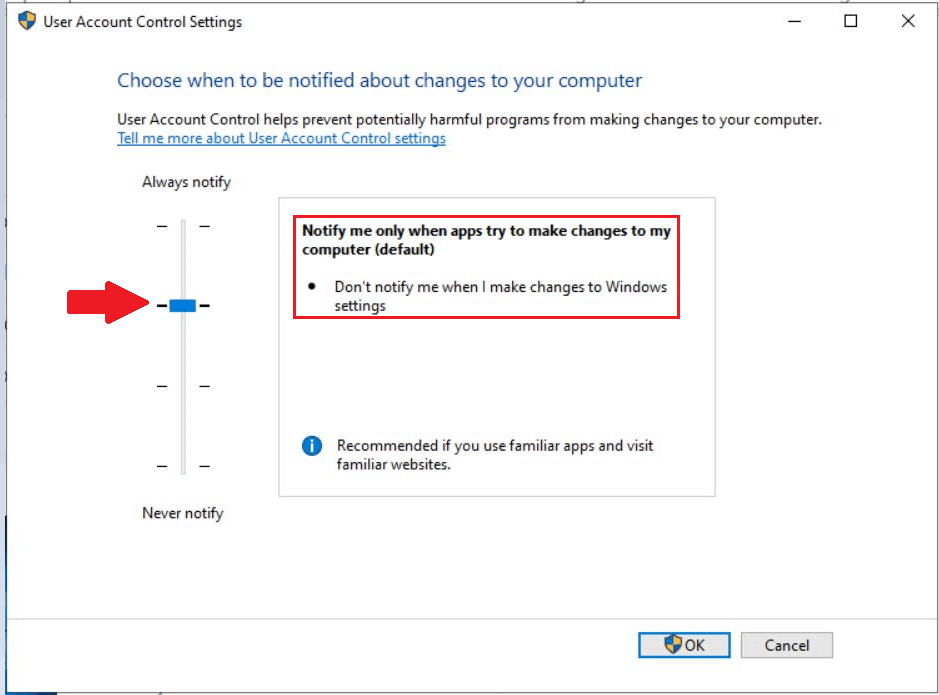
UAC has a slider to select from four levels of notification.
- Always notify
- Notify me only when apps try to make changes to my computer (Default)
- Notify me only when apps try to make changes to my computer (do not dim my desktop)
- Never notify
Configure the UAC Settings
To better understand each component, lets review the settings below:
You must be signed in as an administrator
- Go to Start and open Control Panel. Select User Accounts. Then select User Accounts.

- Select Change User Account Control settings.
Note: If you are prompted by UAC, select Yes to continue.

- Move the slider to one of the following levels.
If you move the scale to the top to select Always notify
- Notify you when apps make changes to your device.
- Your screen will be freeze until you accept or deny the request in the UAC dialog box.
- This is the most secure setting.
Select OK to save your changes, Select Yes when prompted to confirm the changes.

If you move the scale to select Notify me only when apps try to make changes to my computer. This is the default settings.
- Notify you when apps make changes to your device that require administrator permissions.
- Not notify you when you make changes to Windows settings.
- Freeze other tasks until you respond.
Select OK to save your changes, Select Yes when prompted to confirm the changes.
If you move the scale to select Notify me only when apps try to make changes to my computer (do not dim my desktop)
- Notify you before apps make changes to your device that would require administrator-level permission.
- Not notify you when you make changes to Windows settings.
- Not freeze other tasks until you respond.
Select OK to save your changes, Select Yes when prompted to confirm the changes.

If you don’t want to be notified move the scale to the bottom to Never notify
- You won’t be notified before any changes are made to your device, If you’re signed in as an administrator
- This is the least secure setting, Not recommended.
Select OK to save your changes, Select Yes when prompted to confirm the changes.

Resources
- Windows 10 User Access Control Overview
- How to Manage Virtual Desktops in Windows 10
- How to Change Screen Brightness in Windows 10
- How to Set File Explorer to Open This PC instead of Quick Access in Windows 10
- FIX This PC can’t be upgraded to Windows 10 version 2004 or 20H2 Issue | Upgrade on Hold
- How to Disable User Sign-in Animation in Windows 10 | First
- FIX Black or frozen screen in Skype for Business during Screen Share | SfB | Windows 10
- How to Hide or Show Cortana Button on Taskbar in Windows 10
- Install .NET Framework 3.5 in Windows 10 | Quick Easy Way
- How to Unblock App Files in Windows 10


Discussion