











Windows Feature Update Deployment Status Report in Microsoft Intune
Key Takeaways
- Monitors deployment status of Windows Feature Updates across all managed devices in Microsoft Intune.
- Provides real-time update states, including In Progress, Success, Error, Rollback, Cancelled, and On Hold.
- Supports advanced filtering and search by feature update policy, update state, ownership, and device name for faster troubleshooting.
- Allows report customization and export by selecting required columns and downloading the report as a CSV file for offline analysis.
- Helps administrators identify deployment issues quickly, track update progress, and ensure devices are upgraded to the intended Windows feature update version.
The Windows Feature Update Deployment Status Report in Microsoft Intune provides administrators with a centralized view of feature update deployments across managed Windows devices. By offering detailed deployment statuses, device-specific information, filtering and search capabilities, customizable columns, and CSV export options, the report simplifies update monitoring and troubleshooting.
Table of Content
Windows Feature Update Deployment Status Report in Microsoft Intune
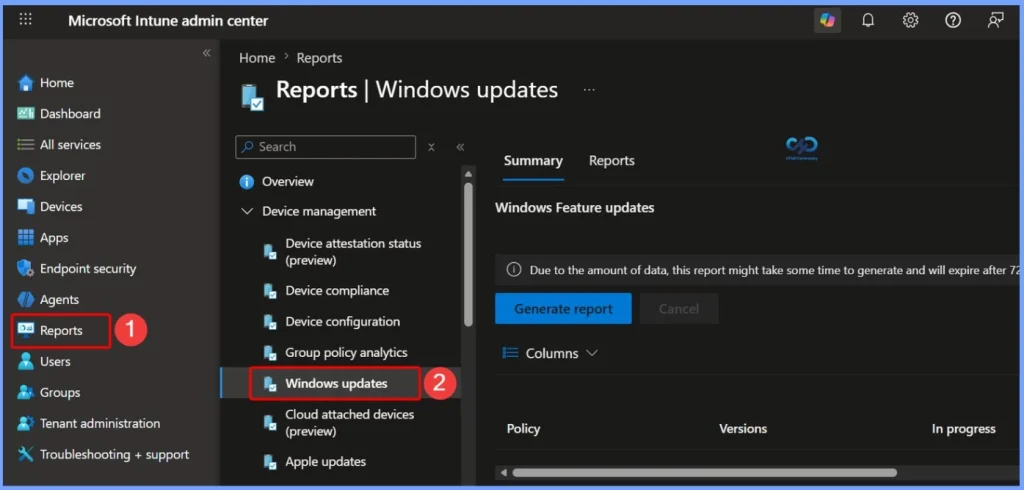
To view a summary report for all Windows Feature Update policies, sign in to the Microsoft Intune admin center and navigate to Reports > Windows updates. The Summary tab opens by default, providing an overview of all feature update deployments across managed devices.
- Easy Guide to Set Feature Updates for Windows 11 as Optional with Intune
- How to Set App Defaults using Intune | Export the Default XML File & Encode it in Base64 format
- Easy Guide to Enable Edge Built-in PDF Reader for WebView2 with Intune
- Best Guide to Deploy New Intune Company Portal App on Windows using Intune
- Intune Win32 App Supersedence and Auto App Update Explained
Access the Windows Feature Update Report in Microsoft Intune
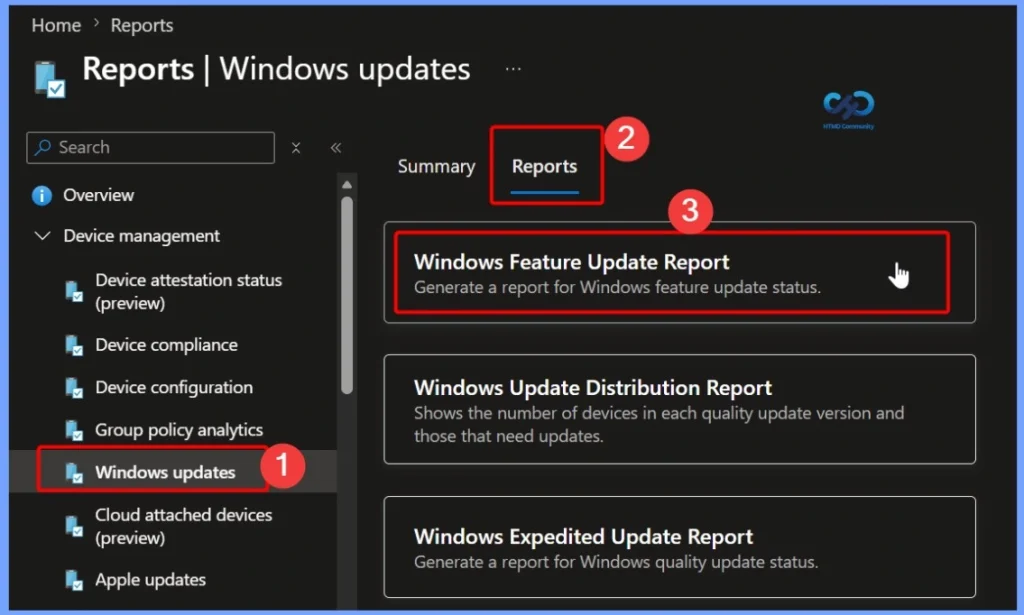
The Windows Feature Update Report in Microsoft Intune helps administrators monitor the deployment status of Windows feature updates across managed devices. To access the report, sign in to the Microsoft Intune admin center, navigate to Reports > Windows updates, select the Reports tab, and then choose Windows Feature Update Report.
Select a Feature Update Policy to Generate the Report
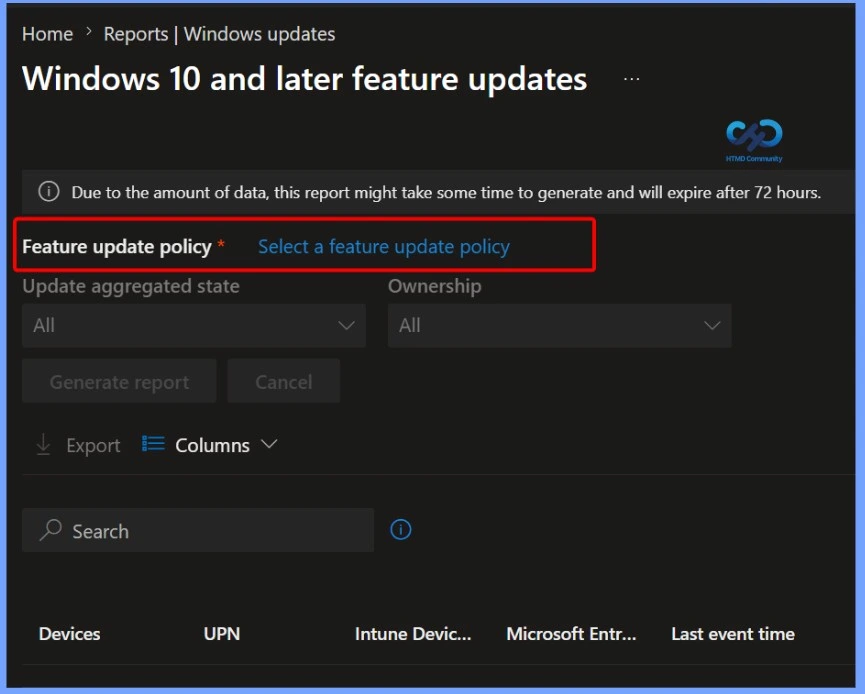
Before generating the report, select the Feature Update policy you want to review. You can also apply optional filters such as Update aggregated state and Ownership to narrow the results. After selecting the required policy, click Generate report to view detailed deployment information for devices targeted by that feature update policy.
- This report helps administrators analyze update progress, identify installation issues, and monitor the deployment status across managed devices.
Choose the Required Feature Update Policy
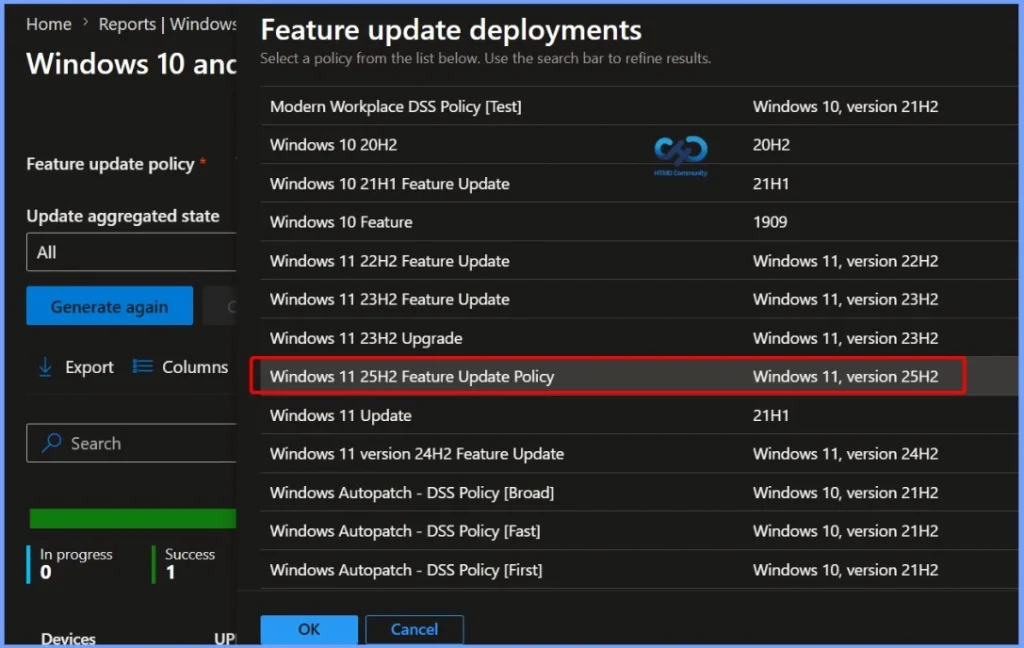
Click the Feature Update policy field to view all available Windows feature update policies. Select the policy you want to analyse, for example, a Windows 11 25H2 Feature Update Policy and then click OK. After selecting the policy, Intune generates a deployment report showing the installation status of devices targeted by that specific feature update policy, making it easier to monitor update progress and troubleshoot deployment issues.
- Modern Workplace DSS Policy [Test]
- Windows 11 22H2 Feature Update
- Windows 11 23H2 Feature Update
- Windows 11 23H2 Upgrade
- Windows 11 25H2 Feature Update Policy
- Windows 11 Update
- Windows 11 version 24H2 Feature Update
- Windows Autopatch – DSS Policy [Broad]
- Windows Autopatch – DSS Policy [Fast]
- Windows Autopatch – DSS Policy [First]
Generate and Review the Windows Feature Update Report
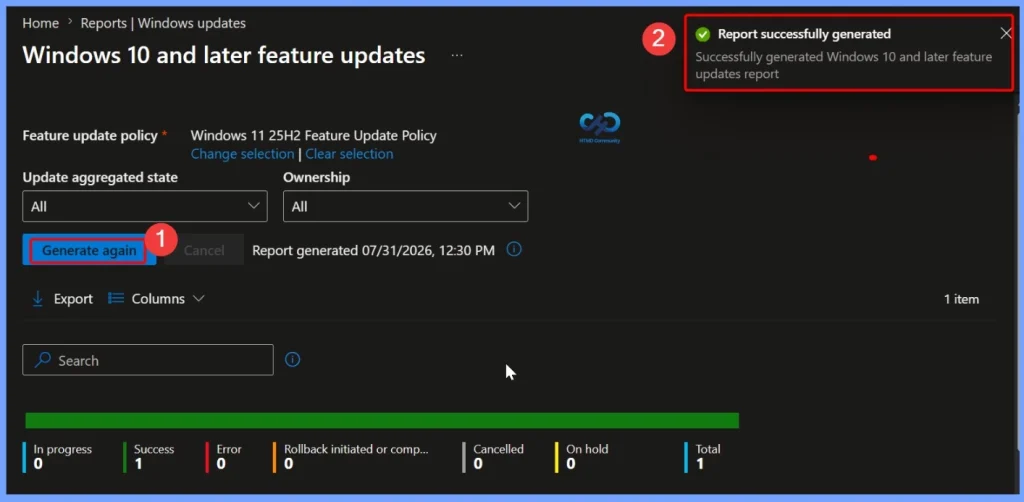
After selecting the required Feature Update policy, click Generate again to create the latest deployment report. Once the report is generated successfully, Intune displays a confirmation notification and provides a summary of the deployment status.
The report includes counts for In Progress, Success, Error, Rollback Initiated or Completed, Cancelled, On Hold, and Total devices, helping administrators quickly assess the overall health of the feature update deployment and identify devices that require attention.
Export the Windows Feature Update Report
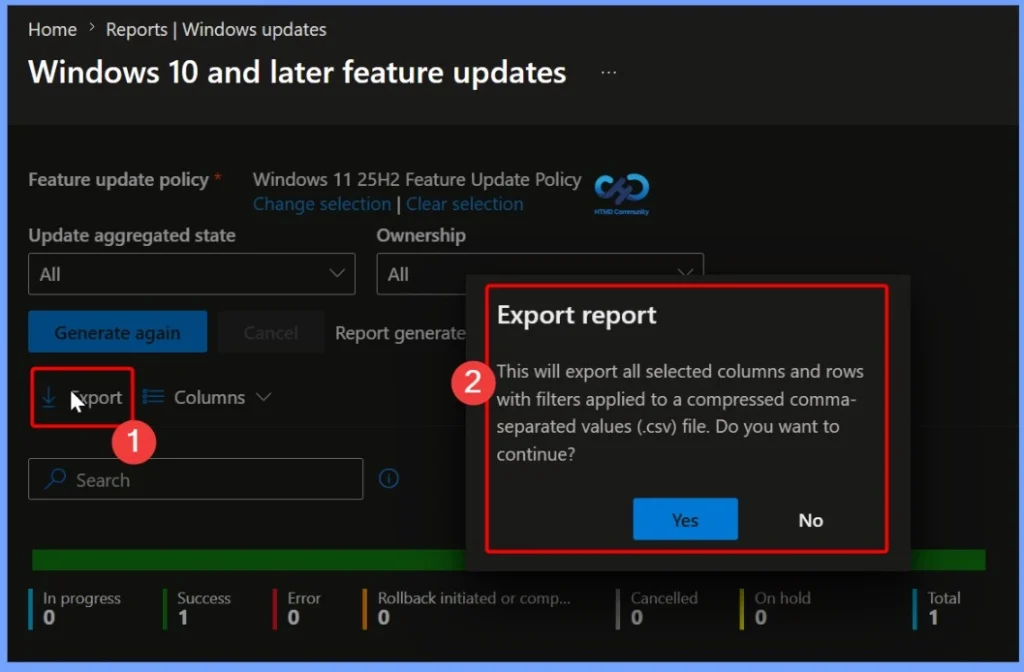
After generating the Windows Feature Update Report, click Export to download the report as a compressed CSV (.csv) file. The exported file includes all selected columns, rows, and any filters applied to the report. When the Export report confirmation dialog appears, click Yes to start the export.
Customize Report Columns in the Windows Feature Update Report
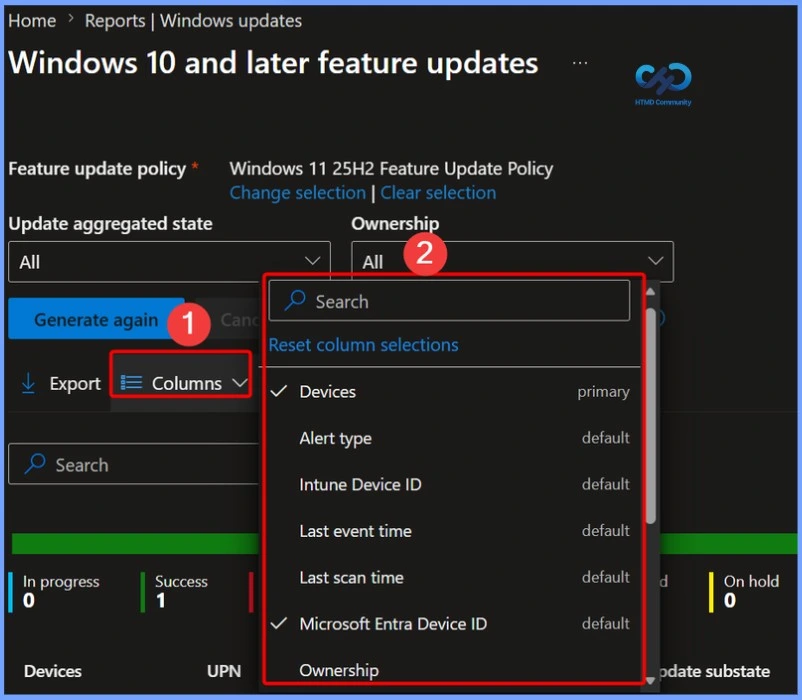
The Columns option lets you customize the information displayed in the Windows Feature Update Report. Click Columns to open the column selection pane, where you can search for specific fields, select or deselect columns, or reset the view to the default configuration.
| Columns Filter |
|---|
| Devices Alert type Intune Device ID Last event time Last scan time Microsoft Entra Device ID Ownership Policy ID Target version UPN Update aggregated state Update state Update substate |
Filter the Report by Device Ownership
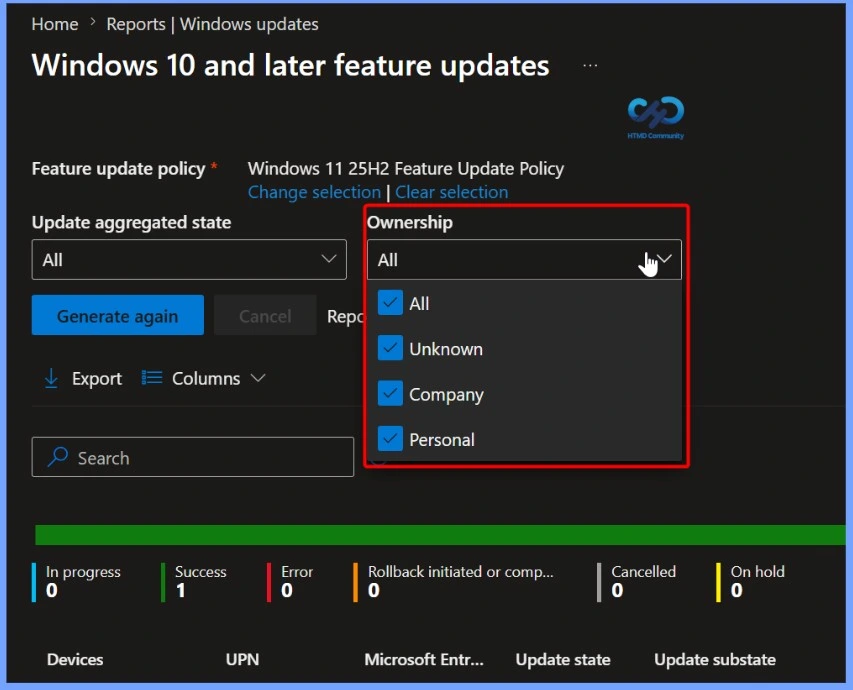
Use the Ownership filter to narrow the Windows Feature Update Report based on device ownership. You can choose All, Company, Personal, or Unknown devices to display only the relevant deployment data.
Filter the Report by Update Aggregated State
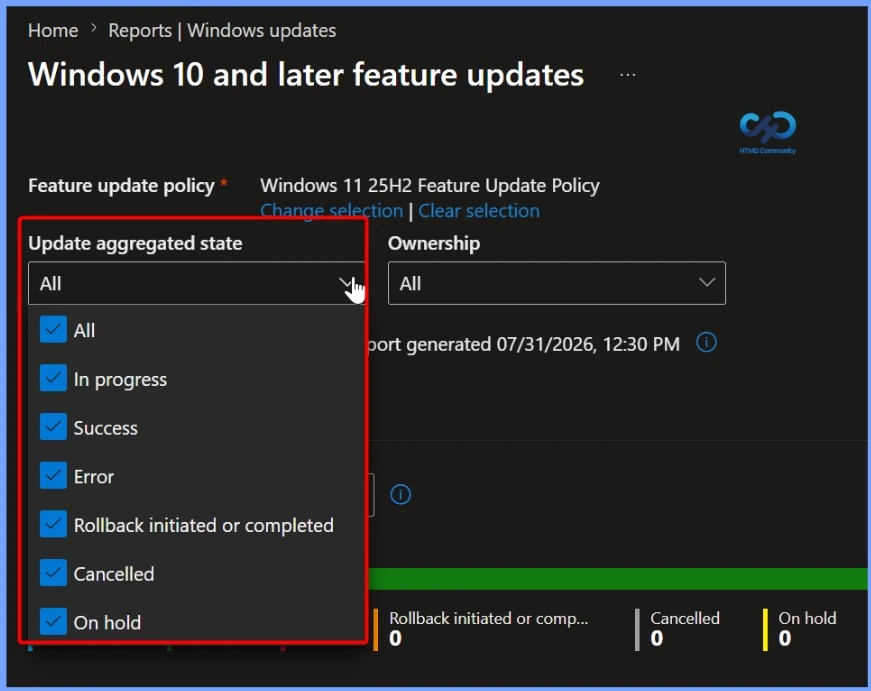
The Update aggregated state filter allows you to view devices based on their current Windows feature update status. You can filter the report by In Progress, Success, Error, Rollback Initiated or Completed, Cancelled, or On Hold, or select All to display every device.
Search for a Specific Device in the Feature Update Report
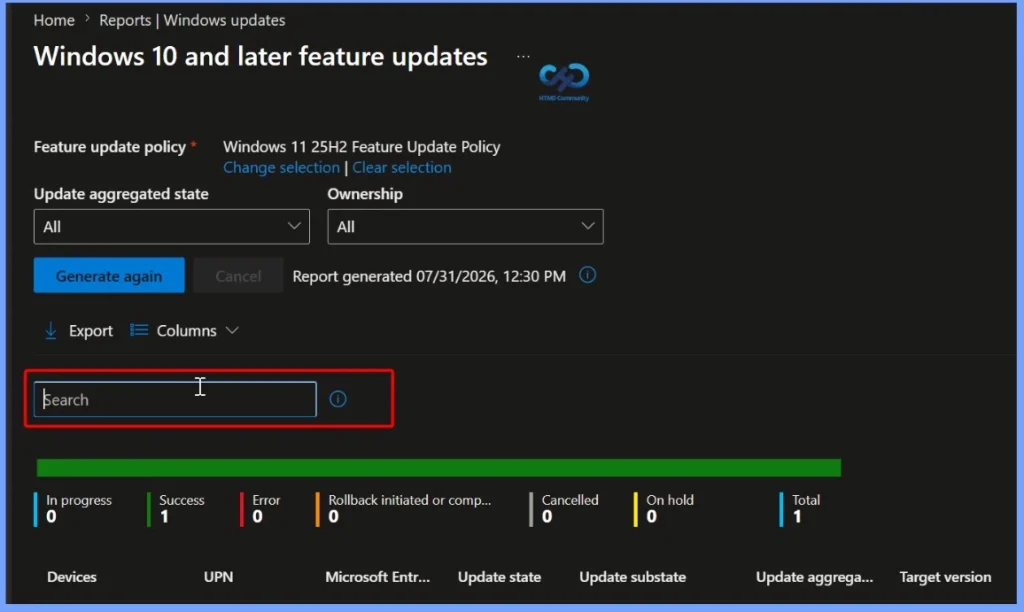
Use the Search box to quickly find a specific device in the Windows Feature Update Report. You can search by device name or other available identifiers to locate the required entry without manually browsing the entire report.
Resources
- Windows 10 feature updates – Intune Report
- Intune Co-management Eligibility Report | Endpoint Manager
- Intune Device Compliance Reports | Endpoint Manager
- How to Use Group Policy Analytics in Intune Portal | Endpoint Manager
- Learn How to Collect Windows 10 Diagnostics Information from Intune Portal | Endpoint Manager
- How to Check Intune Service Release Version | Endpoint Manager
- How to Export All Devices Data from Intune Portal | Endpoint Manager
Need Further Assistance or Have Technical Questions?
Join the LinkedIn Page and Telegram group to get the latest step-by-step guides and news updates. Join our Meetup Page to participate in User group meetings. Also, join the WhatsApp Community and the Whatsapp channel to get the latest news on Microsoft Technologies. We are there on Reddit as well.


Hello, great article – just a question – do you know how the client-side data of the report are gathered? I have a two tenants and in one, everything is in progress and there are not data from clients whatsoever and in the second one its half-to-half…
Never mind – just figured it out 😀 one tenant had policy for data collection created when there was no option for updates info to be collected 🙂
StaffThat’s good to hear!
@Lallanna, could you please tell us more on how you resolved it. 90% machines are showing in a pending state.
Great article, I’m trying to use this feature to deploy Windows 11 upgrade, the status of my test clients in this report all have an update state of “Offering” but the status hasn’t changed for a few days now. On the clients no feature update is showing as available in Windows Update. Any ideas on how I can troubleshoot this?
StaffTry checking https://www.anoopcnair.com/windows-11-feature-update-deployment-policy/ and https://www.anoopcnair.com/in-place-upgrade-of-cloud-pcs-to-windows-11/
did this help? we’re seeing the same issue where feature update (21H2) is showing as Offered – even though these devices are at 21H2
Hi ,
We are in the process of testing the new Gradual Deployment for the Feature update , we set a 2 week time frame and 3 days apart ,
All devices are “State = Pending” Substate = Scheduled” “Aggregated State = In Progress”
My understanding was that the update will be offered in Dynamically created groups every 3 days but seems they are just in this state .
Will that mean that after the deadline it will offer it to all devices at once or will do the gradual offering after the deadline ? should we keep waiting or is this not the normal behavior ?
When the status is Pending – Scheduled, is there anything we can do from an IT Admin perspective to force the update down? I have a load of devices which have this status but they are all devices which should get the update.
Even other devices of the same model and Windows 10 version already have the update.
Hi All – have a curious one with Feature Updates that seem to have suddenly ‘stopped’ working.
We have an estate of around 80 machines which are mostly Win10Pro, pure Azure AD (no hybrid etc), all Business Premium licenses. We want to start rolling out Win11 at some point and around 5 months or so ago did some testing with Feature Updates. Created a Feature Update profile to push Win11-22H2, created a Device Group and assigned a couple of test devices, assigned the device group to the profile and off we go – within a day or so both machines targeted were updated all OK. So far so good….. 👍
Back end of last week I decided to revisit this to begin pushing out to few more machines. Everything from my previous testing was all still in place, so I simply added a a couple more machines to the targeted device group, fired the machines up, made sure they were syncing within Intune / Azure and waited……… Nothing!
Now when I look at the Feature Update reports it doesn’t show status for ANY machines – even the previously successfully updated ones!? All status’ (In Progress, Success, Error, etc) all show a value of 0 (Zero). It’s almost as though the Device Group assigned to the profile is empty (which I know it’s not having rechecked numerous times!).
Other profiles and reporting for Expedited Quality Updates and Driver Updates are all running and showing fine and I’m happy with their levels of accuracy – so fairly happy elements such as Telemetry and Health Monitoring is running OK – it’s just Feature Updates which don’t seem to want to work.
Have also created parallel Feature Update profiles and Devices Groups etc to check and these did exactly the same – it does seem to be Feature Updates specifically that don’t want to work (needless to say the targeted machines aren’t actually receiving the Feature Update either – this isn’t simply a reporting issue!).
Has anyone seen anything similar (or better still got any answers!!)??
Many thanks all in anticipation,