












Allow Set Hours to Limit Background Download Bandwidth in Intune Settings Catalog
Let’s discuss Allow Set Hours to Limit Background Download Bandwidth in Intune Settings Catalog. The Microsoft Intune 2403 version added a feature that allows you to set hours to limit background download bandwidth.
Microsoft is dedicated to providing immersive features and enhancements for Intune users. Last Month, Microsoft released the 2403 version, which helps users improve their experience. Intune provides new features in all the sections of Intune.
New features arrived mainly on Device management, Device configuration, App management etc. Allow Set Hours to Limit Background Download Bandwidth feature can be easily found in the Device Configuration section.
The Set Hours To Limit Background Download Bandwidth setting specifies the maximum background download bandwidth. This blog post explains how to enable it in the Windows Settings Catalog.
- Insights of How Copilot for Security Works
- Microsoft is Working to Fix Intune 23H2 Security Baselines Issue
Allow Set Hours to Limit Background Download Bandwidth in Intune Settings Catalog
Users can easily find this feature on the Microsoft Intune Portal. Some features roll out over several weeks and might not be available to all customers in the first week.
Delivery Optimization uses Hours To Limit Background Download bandwidth during and outside business hours across all concurrent download activities as a percentage of available download bandwidth.
| Steps for Allow Set Hours To Limit Background Download Bandwidth |
|---|
| Sign in to the Microsoft Intune admin center |
| Select Devices and click on Configuration |
| Click on +Create and select New Policy |

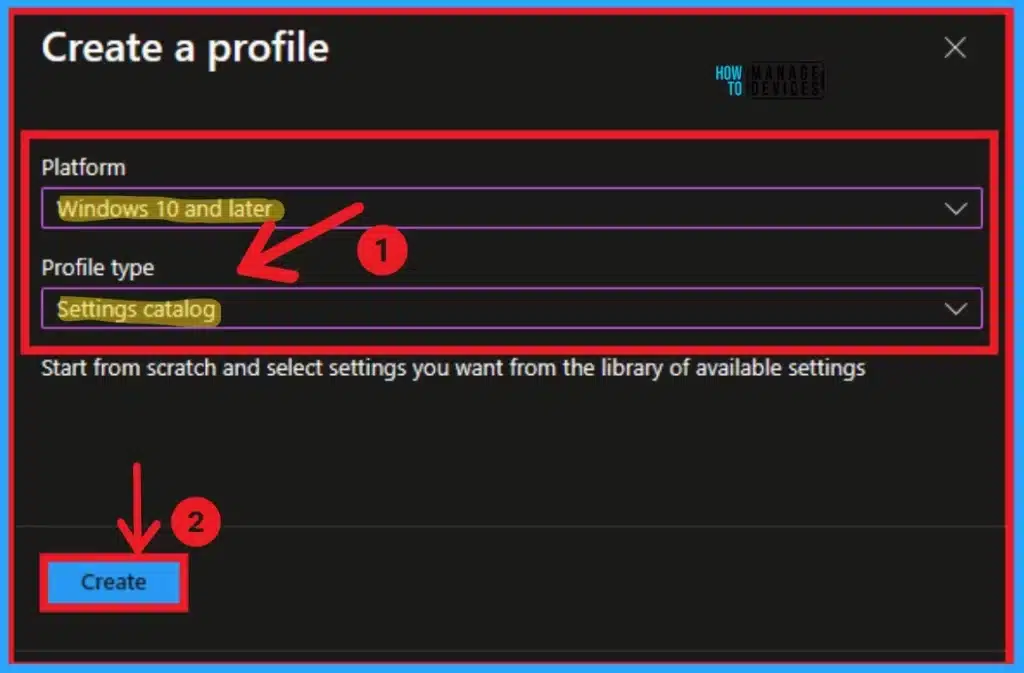
After that, a new window will appear, and you can choose the Platform and Profile Type. Select Windows 10 and later as the platform and Settings catalog as the Profile type. Then click on the Create button.
After that, you create a profile to Set Hours To Limit Background Download Bandwidth. The first section of the profile creation process is Basic. In this section, you can provide the appropriate Name and Description. This is a required section, and users must add it to continue creating Profiles.
- The description allows users to know about the Policy at any time.
- Click on the Next button after adding the Name and Description.

Next is the Configuration section, where you can select +Add settings to continue creating the profile. This section is used to choose the settings you want to configure.

Then, the Settings Picker window will open, and you can search for the keyword of the search item. Here, the keyword is Set Hours To Limit Background Download Bandwidth. Then click on the Search button. After, you can browse the policy from the Administrative Templates\Windows Components\Delivery Optimization category. The result is shown in the screenshot below.
- Click on the Set Business Hours to Limit Background Download Bandwidth

The window below shows the Configuration settings page. Here, the selected category and its subcategory are shown. From the window below, enable Set Hours To Limit Background Download Bandwidth. Then click on the Next button.

- Configure Android Shared Devices using Intune
- Install New Outlook for Windows with Microsoft Store App from Intune
Scope Tag is the next stage of Profile Creation. You can easily skip this section or add Scope tags for your profile. However, a scope tag is not mandatory for this profile creation. If you skip this section, you can click on the Next button and continue.

Next is the Assignment section. In this section, you can Add groups to Set Hours To Limit Background Download Bandwidth. To do this, add groups to the included groups. After that, a new window will appear, and you can select a group from here. Then click on the Select button and click on the Next button.

The last section is Review + Create. In this window, you can see all the details of your profile. It summarises the profile and shows the previous sections of profile creation. You can quickly go to the earlier sections if any changes are necessary. After verifying all the steps, you can complete the Profile creation.
- Click on the Review + Create button from this window

After clicking the Create button, you will receive a notification on the Intune Portal stating, “Disallow Cache Server Downloads on VPN. “ You can easily check the Created policy in the Intune Portal.

- Disallow Cache Server Downloads On VPN in Windows Settings Catalog
- Copilot for Security Prompting Samples for Microsoft Intune
We are on WhatsApp. To get the latest step-by-step guides and news updates, Join our Channel. Click here –HTMD WhatsApp.


Discussion