










Install Malwarebytes App using Intune Enterprise App Catalog App
Let’s discuss Installing the Malwarebytes App using the Intune Enterprise App Catalog App. Malwarebytes is a software application designed to detect and remove malware from devices. It is intended for OS such as Windows, Mac, Android, and iOS devices.
Users face different malware attacks daily and must find solutions to defend themselves from these issues. As you all know, Microsoft introduced many security applications to protect your device from malware.
However, some third-party applications are also available for device security. Malwarebytes is the best example. You can install this application for your personal use, and it is also a better option for your organization.
Installing Malwarebytes is simple using the Enterprise App Catalog App. In this blog post, I will share the steps you should follow to complete the installation of the Malwarebytes application in Intune.
Table of Contents
Who is the Founder of Malwarebytes Application?
Malwarebytes was founded by Marcin Kleczynski and Bruce Harrison in 2008.
Install Malwarebytes App using Intune
To start the Malwarebytes app deployment for your organization, access the Intune Enterprise App Catalogue App by opening the Microsoft Intune portal.
- Apps > All Apps > Add >
- Select Enterprise App Catalog App from the app type
- Then click on the Select button.

- Best Way to Install Audacity App Via Intune Enterprise App Catalog App
- Waterfox Deployment using Enterprise App Catalog App via Intune
- Create and Deploy Python Applications with Intune Enterprise App Catalog App
App Information Settings
The Next tab is the App Information tab, which shows important information about the app you want to select. Click on the Search the Enterprise App Catalog button. A new window will then open that shows different types of Apps. Click on the Malwarebytes App.

Then click on the Configuration on the window. Click on the Malwarebytes App, then click on the Select button. You can see the package Name, Language, Architecture, Version, etc.

After Selecting the Malwarebytes App, you can see several details, such as Name, Description, Publisher, App version, etc. The table below shows the different details in the App Information tab.
| Name | Description | Publisher | App Version |
|---|---|---|---|
| Malwarebytes | Malwarebytes for Windows protects your PC from advanced malware and ransomware, replacing antivirus software with technologies designed to prevent | Malwarebytes Corporation | 4.6.17.334 |

on the App Information, you can also see many other options. Slightly scroll down this page to see the select Image hyperlink near the Logo. After clicking on this, you can see the file Explorer logo. Click on this and select the logo from your file, which was already uploaded.
After selecting the logo, you will get the notification on the portal as ” Upload Complete.” Then, you can click on the OK button. After that, another notification will appear: “The image was uploaded successfully.” Click on the Next button.

Program Settings
The Program Tab is the second tab that specifies the commands to install and uninstall this app. It includes the Install command, the Uninstall command, the Installation time required (mins), and more. Click on the Next button.
| Install Command | Uninstall Command | Installation Time Required(mins) | Allow Available Uninstall | Device Restart Behavior |
|---|---|---|---|---|
| “MBSetup.exe” /VERYSILENT /SUPPRESSMSGBOXES /NORESTART | “%ProgramW6432%\Malwarebytes\Anti-Malware\mbuns.exe” /VERYSILENT /S … V | 60 | Yes | Determine behavior based on return codes |

Requirements
The Requirements tab is the third Tab that specifies the app’s installation criteria. It includes the Operating System, Disk Space, Memory, CPU speed required, etc. Click on the Next button.

Detection Rules
The Detection Rules step allows you to configure the rules to detect the app’s presence. The Rules format is manually configured detection rules. These rules ensure that an app is only installed if it is not already installed and confirm successful installations. The window below shows more information.
- Click on the Next button

Scope Tags
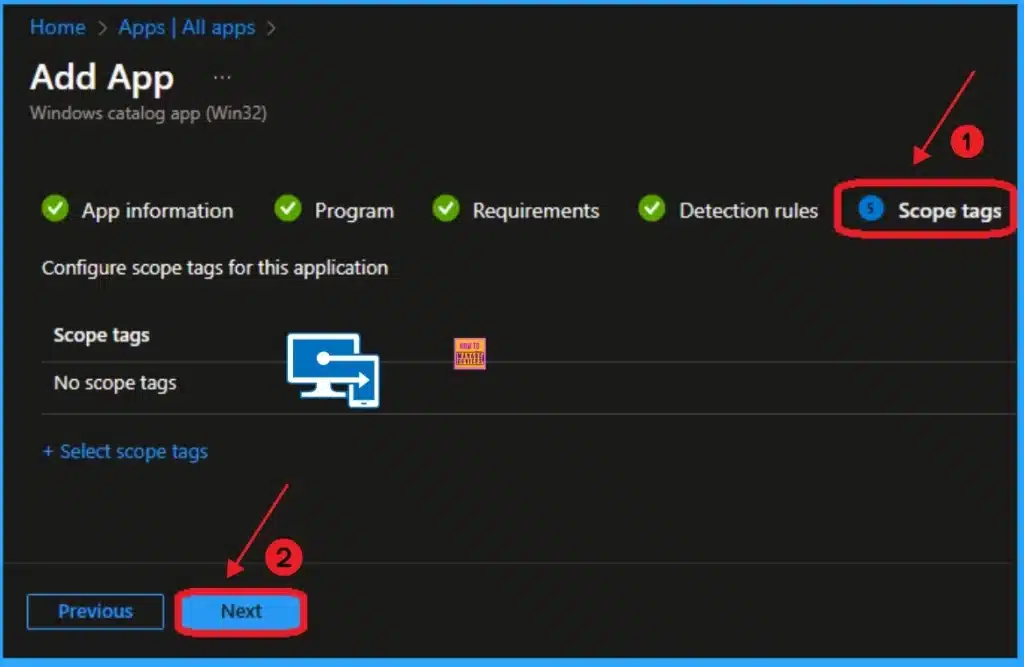
The Scope tag in the Enterprise App Catalog App allows users to assign tags to filter profiles for specific IT groups. It also determines who can see client app information in Intune. This tab is not compulsory, so you can skip it. Click on the Next button.
Assignments Settings
As you know, the Assignment tab helps users assign apps to groups or users. It also controls who can access the Malwarebytes app and how they can access it.
- Click on the +Included hyperlink under Group Mode.
- Select the group from the list of Apps and Click on the Select button.
- Then, the Group will show on the Assignment Tab.
- Click on the Next button.

Review + Create Tab
The Review + Create tab allows you to recheck the information from all the previous tabs. Using this tab, you can verify that the app information is configured correctly. Click on the Add App button.

Monitoring Status of Malwarebytes App
After finishing the app installation steps in the Review + Create tab, you will receive a message on the Portal stating that the Application has been added. However, the installation is incomplete, and you must wait 8 hours. If you want to complete the installation immediately, you should go to the Company Portal of the assigned device.
- Open the Company Portal
- Select the Settings and click on the Sync button
- Wait a few minutes to complete the syncing
- Go to Intune Portal and open the Malwarebytes app from the app list
- On the Overview page, you can see the Installed as 1

End User Experience
After completing the installation, you should check the End user Experience. To do this, open the Company Portal and go to the Downloads section. Here, you can see the Malwarebytes app installed, and app details are also shown.

Need Further Assistance or Have Technical Questions?
Join the LinkedIn Page and Telegram group to get the latest step-by-step guides and news updates. Join our Meetup Page to participate in User group meetings. Also, Join the WhatsApp Community to get the latest news on Microsoft Technologies. We are there on Reddit as well.

Anoop C Nair is Workplace Technology solution architect with 25+ years (as of 2026) of experience in global enterprise organizations such as JP Morgan, Capgemini, etc. Microsoft Certified Trainer (MCT). Microsoft MVP from 2015 onwards for consecutive 11+ years! He also conducts Intune and modern workplace tech training for enterprise organizations. He is Blogger, Speaker, and Founder of HTMD Community and HTMD Conference. His main focus is on Device Management technologies like Intune, Windows, Cloud PC. He writes about technologies like Intune, SCCM, Windows, Cloud PC, Windows, Entra, Microsoft Security.

Discussion