










Surface Pen Battery Replace – How to Use Surface Pen?
My Surface Pen of Surface Book stopped working a couple of months before. In this post, you will learn to Replace Surface Pen Battery. You will also learn how to configure Surface Pen buttons.
Surface Pen Issue
The surface pen which came with Surface book stopped working. I tried to remove and add the Surface Pen from Surface Book. Yes, I was able to remove it successfully. But, I couldn’t add back the surface pen. The surface pen was not getting detected via Bluetooth.
Types of Surface Pens?
There are three (3) types of Surface Pens. The battery replacement procedure is different for different types of pens.
- No clip
- Single button on flat edge (I have this type of surface PEN)
- Two side buttons
How to Replace Surface Pen Battery
I have already shown you how to replace the battery in the above video tutorial. As mentioned above, my surface pen is Single button on the flat edge. The following are the steps to replace Surface Pen.
- Make sure you have AAAA battery (It’s NOT AAA)
- Turn the cap (the eraser end) of Surface Pen counter-clockwise until you hear and feel it click into place (about 30 degrees). Gently pull the cap straight out from the body to replace Surface Pen.
- IMP – Replace the AAAA battery with the positive (+) end of the battery pointing toward the tail end of the Surface Pen.
- Line up the metal guide bump on the cap with the half-circle cutaway on the Surface Pen body, and slide the cap back into place.
- Turn the cap a little bit to align the flat edges.
How to Pair Surface Pen
Follow the steps to pair the Surface Pen to Windows 10 device. I have explained the pairing details in the surface pen battery replacement video above.
- Select the Start button
- Select Settings > Devices > Bluetooth
- Hold down the shortcut button (top button) on your Surface pen for 7 seconds to turn on pairing mode
- Choose the surface pen from the list of devices from Windows 10 device, and then select to Pair Surface Pen
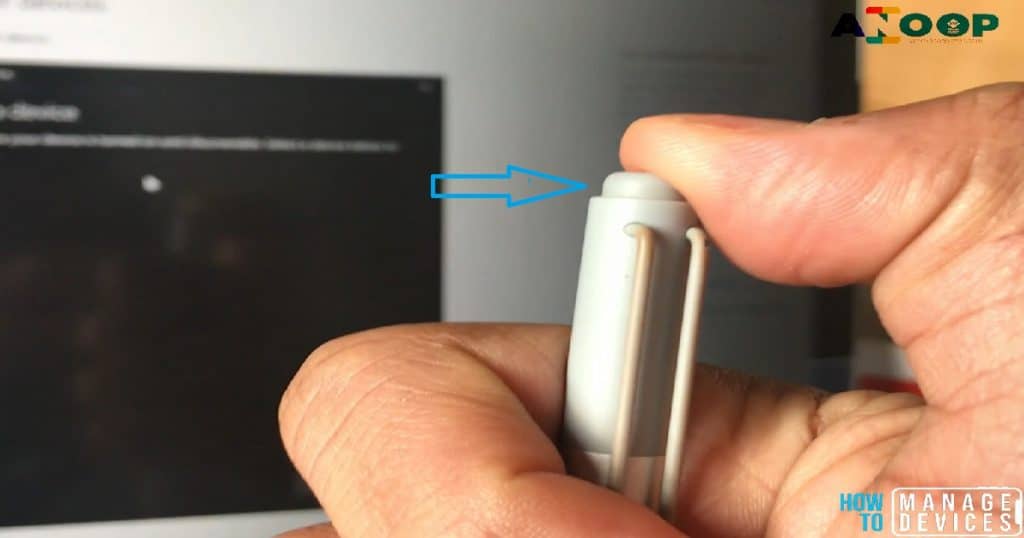
Surface Pen Pairing
How to Customize Surface Pen Settings or Button Configurations?
The following section will help you to understand the details of Surface Pen button customization options and surface pen custom configurations. I have explained the same in the surface pen battery replacement video above. How to change the Surface Pen Settings?
You can select whether you are using Left or Right hand from a Windows 10 settings as you can see below. If your surface pen has a shortcut button, then choose what to do when you press the button on the top of the surface pen.

Surface Pen Customization Button Settings – Battery Replace
- To change Surface Pen settings, select the Start button
- Select Settings > Devices > Pen & Windows Ink
- Surface Pen button – Click Once setting has following options, you can select any one of the option: (more details – surface pen battery replacement video )
- Nothing
- Screen Snipping
- Windows Ink Workspace
- OneNote
- Launch Classic App
- Launch a Universal App
- OneNote 2016
- Surface Pen button – Double Click Setting has following options, you can select any of the option from the list below: (more details – surface pen battery replacement video )
- Nothing
- Windows Ink Workspace
- Send Screenshot to OneNote
- Launch Classic App
- Launch a Universal App
- Send screenshot to OneNote 2016
- Surface Pen Button – Press & Hold setting has following options, you can select any one for your surface pen: (more details – surface pen battery replacement video )
- Nothing
- Windows Ink Workspace
- Cortana
- Launch Classic App
- Launch a Universal App
Resources
- What is Windows Ink Workspace https://support.microsoft.com/en-gb/help/17207/windows-10-use-windows-ink
- How to Change Surface Pen Settings – Change pen settings
- Replace Surface Battery Process
- How to Manage Windows Guide

Anoop C Nair is Workplace Technology solution architect with 25+ years (as of 2026) of experience in global enterprise organizations such as JP Morgan, Capgemini, etc. Microsoft Certified Trainer (MCT). Microsoft MVP from 2015 onwards for consecutive 11+ years! He also conducts Intune and modern workplace tech training for enterprise organizations. He is Blogger, Speaker, and Founder of HTMD Community and HTMD Conference. His main focus is on Device Management technologies like Intune, Windows, Cloud PC. He writes about technologies like Intune, SCCM, Windows, Cloud PC, Windows, Entra, Microsoft Security.


Discussion