






204th HTMD Newsletter 28th July to 1st August 2025
Welcome to the 204th HTMD Newsletter, 28th July to 1st August 2025! This is the list of posts and videos the HTMD Community published this week, and news from the IT industry. You can get all the information and details from Windows 11, Cloud PC, SCCM, Intune, Azure Virtual Desktop (AVD), Android, iOS, and Mac.
Previous Weeks Newsletters
- 201st HTMD Newsletter – HTMD Newsletter 7th to 11th July 2025
- 202nd HTMD Newsletter – HTMD Newsletter 14th to 18th July 2025
- 203rd HTMD Newsletter – HTMD Newsletter 21st to 25th July 2025

Monday 28th July 2025
💫Enable or Disable Insecure Download Warning Policy for Microsoft Edge using Intune
–https://www.anoopcnair.com/insecure-download-warning-policy-foredge-intune/
🎀Insecure Download Warning Policy for Microsoft Edge
🎀Bring a Safer Browsing Practice
🎀Provide Warnings when Potentially Dangerous Content is Downloaded
🎀How this Policy Helps Admin?
🎀Steps to Configure Insecure Download Warning Policy
🎀Monitoring Status
🎀Client-Side Verification

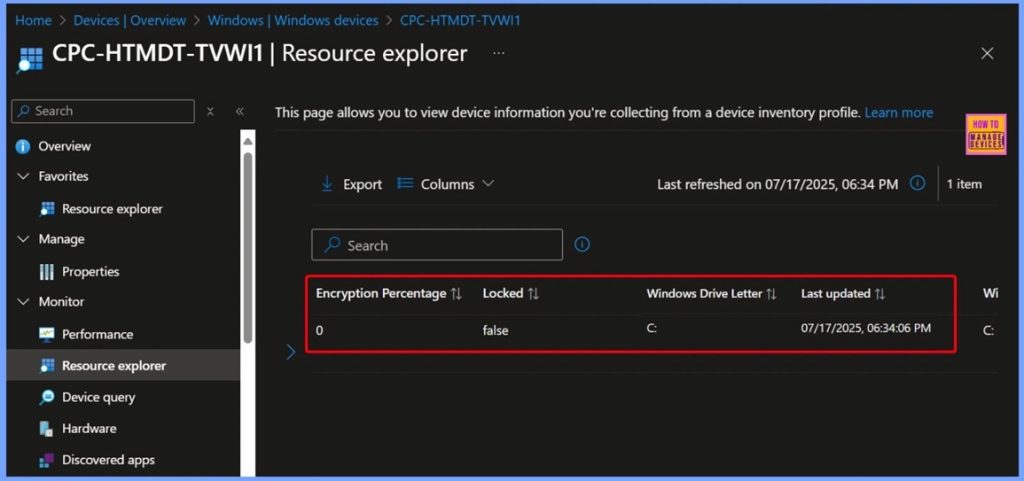
🎆How to use Intune Inventory to Check BitLocker Encryption Status of Windows Devices
–https://www.anoopcnair.com/intune-inventory-bitlocker-encryption-status/
🔥Create a New Configuration Profile
🔥Supported Platforms and Scenarios
🔥What Is EncryptableVolume in Intune?
🔥Encryptable Volume
🔥Control Access through Scope Tag
🔥Assignments Help you Control Who Gets What
🔥Create Button to Save and Deploy the Policy
🔥Monitoring Status
🔥End Result
🔥Collected Encryptable Volume Data
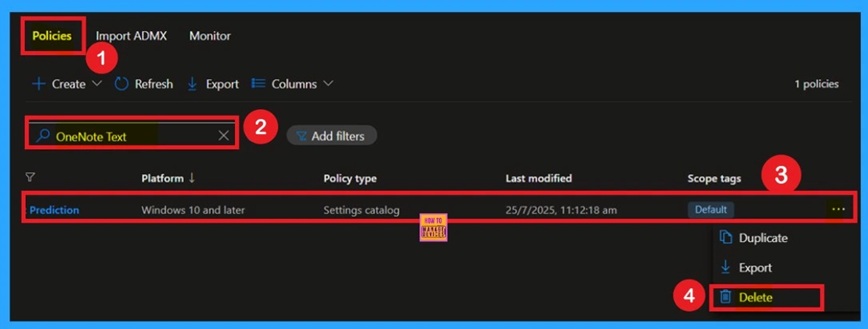
📌OneNote Text Prediction for user Policy Deployment using Intune
–https://www.anoopcnair.com/onenote-text-prediction-for-user-policy-intune/
💡Suggests the Next Word While Typing in OneNote
💡Tab or Right Arrow to Insert the Suggested Word
💡Works with Subscription-Based Office
💡What happens When the policy is Disabled?
💡How this Policy to be useful to the Organizations
💡Monitoring Status
💡Client-Side Verification
🎉Allow Users to Choose Merging or Keeping Both Copies during Office File Sync Conflicts using Intune
–https://www.anoopcnair.com/copies-during-office-file-sync-conflicts-intune/
🎯Manage Sync Conflicts in Office Files in OneDrive
🎯Choose Between Merging or Keeping both File Versions
🎯What Happens When you Enable the Policy?
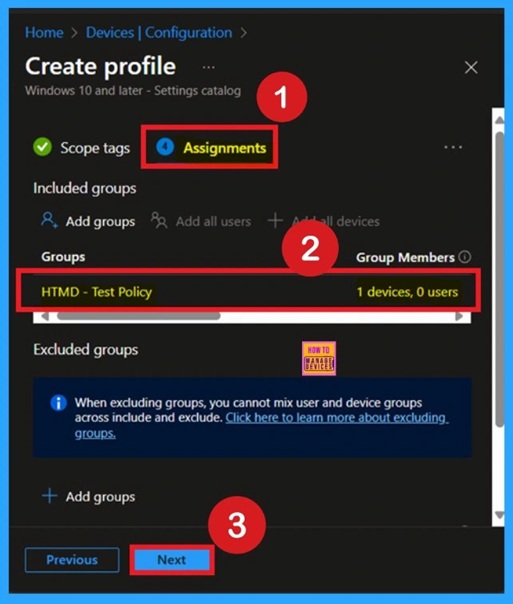
🎯Step by Step Deployment in Intune
🎯Monitoring Status
🎯Client-Side Verification
Tuesday 29th July 2025
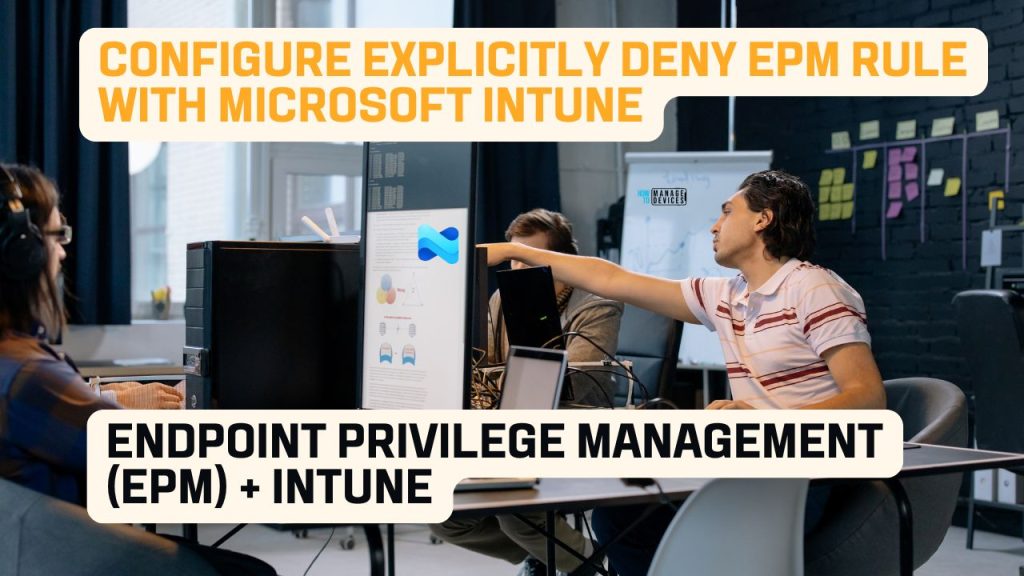
🎆Configure Explicitly Deny EPM Rule with Microsoft Intune | New Updates | Demo by Vaishnav #msintune
–https://youtu.be/vpkhJrbLYOE
Learn how to configure an “Explicitly Deny” Endpoint Privilege Management (EPM) rule using Microsoft Intune. This video delves into the latest update in EPM capabilities, focusing on how to effectively block specific applications from elevating privileges on Windows 10 and Windows 11 devices.
We’ll cover:
▶️What EPM is and its core functionalities.
▶️Prerequisites and requirements for implementing EPM.
▶️Understanding Elevation Rule Policies.
▶️Deep dive into the new “Explicitly Deny Elevation” feature.
▶️Utilizing the EPM Tools PowerShell Module for diagnostics and building detection rules.
▶️A practical, step-by-step demo on creating and deploying an Explicitly Deny EPM Rule Policy.
▶️Observing the end-user experience when a denied application attempts elevation.
This session is crucial for IT administrators looking to enhance their organization’s security posture by implementing a Zero Trust principle with granular control over application elevation.
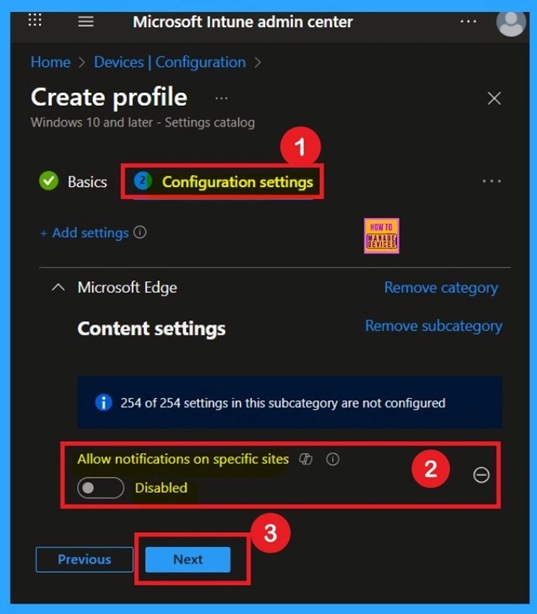
🎆Allow Notifications on Specific Sites in Microsoft Edge Browser using Intune Policy
–https://www.anoopcnair.com/notifications-on-specific-sites-edge-Intune/
🔥Allow Notifications on Specific Sites
🔥Organizations Control which Websites can Send Notifications
🔥Helps Minimize Distractions
🔥Prevents unknown Sites from Pushing Unwanted Content
🔥Step by Step Policy Deployment
🔥Monitoring Status
📌 How to Change Two New Display Language Packs for Windows 365 Cloud PCs using Intune
–https://www.anoopcnair.com/display-language-packs-for-windows-365-intune/
➡ Windows 365 Service Release 2506 Update
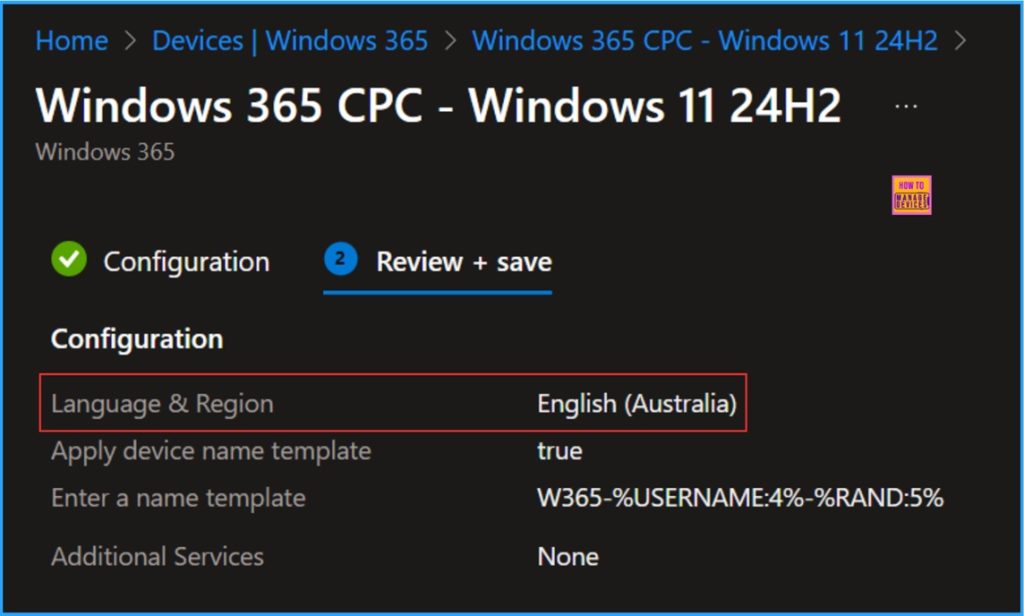
➡ Two New Display Language Packs for Cloud PCs: English (Ireland) and English (Australia)
➡ Use the Provisioning Policy to Set up a Default Display Language on Cloud PCs
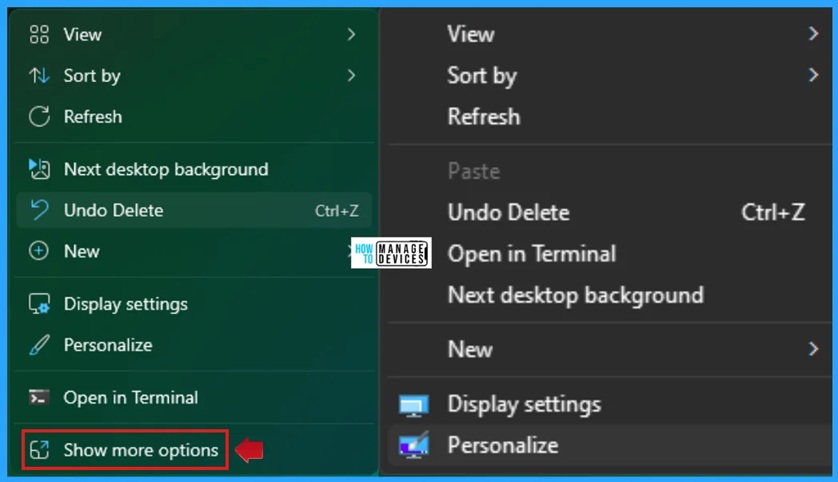
📌How to Analyse and Clean Up Component Store WinSxS folder in Windows 11
–https://www.anoopcnair.com/component-store-winsxs-folder-in-windows-11/
➡How to Analyse and Clean Up Component Store
➡Analyze Component Store Using Windows Terminal (Admin)
➡Cleanup the Component Store Using Task Scheduler
➡Cleanup the Component Store Using Windows Terminal
➡StartComponentCleanup Command
➡StartComponentCleanup /ResetBase Command
➡Additional Tip
Wednesday 30th July 2025
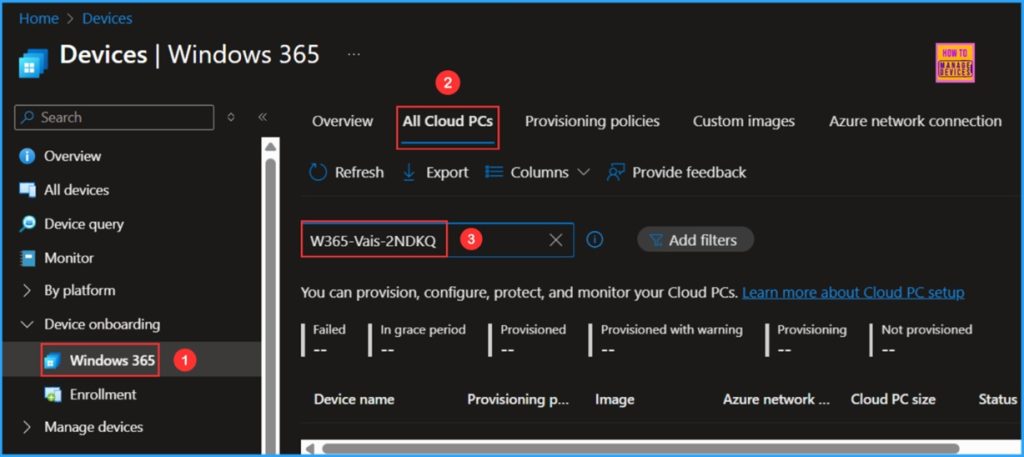
📌How to Deprovision Windows 365 Cloud PC in Intune When they are in Grace Period Status
–https://www.anoopcnair.com/deprovision-windows-365-cloud-pc-in-intune-when/
➡Different Statuses of Windows 365 Cloud PCs in Intune
➡Identify Windows 365 Cloud PC In Grace Period Status in Intune
➡Deprovision Windows 365 Cloud PC
➡What is Grace Period Status in Grace Period Status
➡End Result of Deprovision Windows 365 Cloud PC
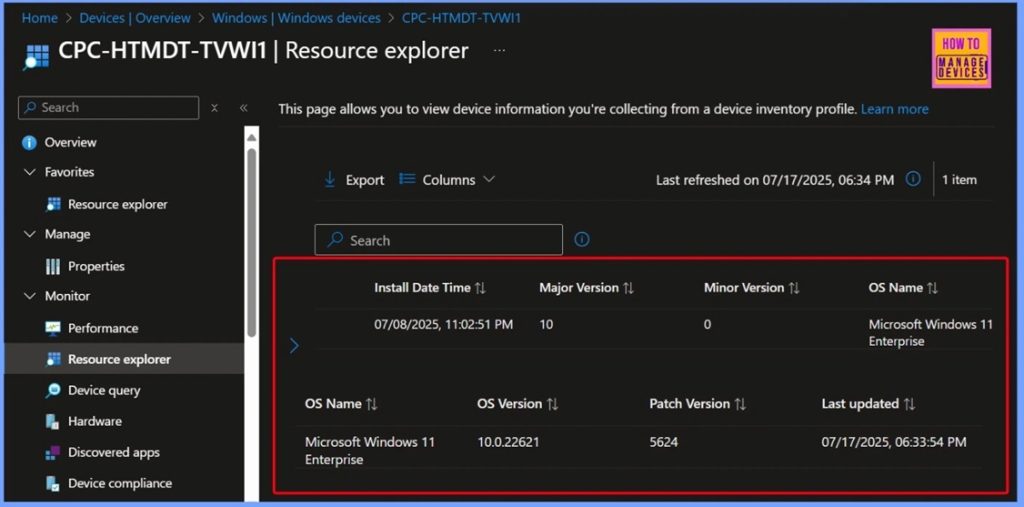
🎆How to Track Windows OS Version and Build Details using Intune Inventory Policy
–https://www.anoopcnair.com/windows-os-version-build-details-using-Intune/
💻What is the OsVersion Property in Intune?
💻Why It Matters for IT Admins
💻Supported Platforms
💻Supported Scenarios
💻End Result
💻Collected Important Details Related to the Windows OS Version and Build Details
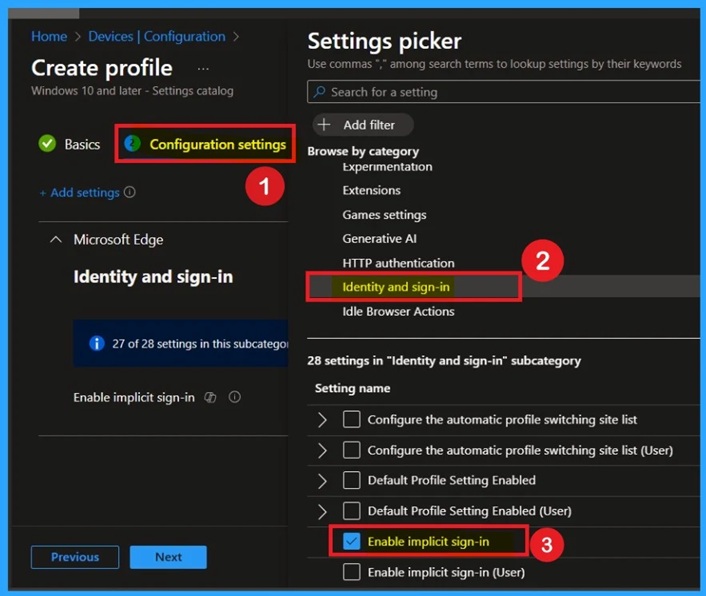
🎆Enable Disable Implicit Sign-in Policy in Microsoft Edge Browser using Intune Policy
–https://www.anoopcnair.com/implicit-sign-in-policy-Microsoft-edge-Intune/
🔥Implicit Sign-in Policy in Microsoft Edge
🔥Simplifies user experience
🔥Automatically Signs users into Edge using Windows Credentials
🔥What will Happen when We Enable the Policy?
🔥Monitoring Status
🔥Client-Side Verification
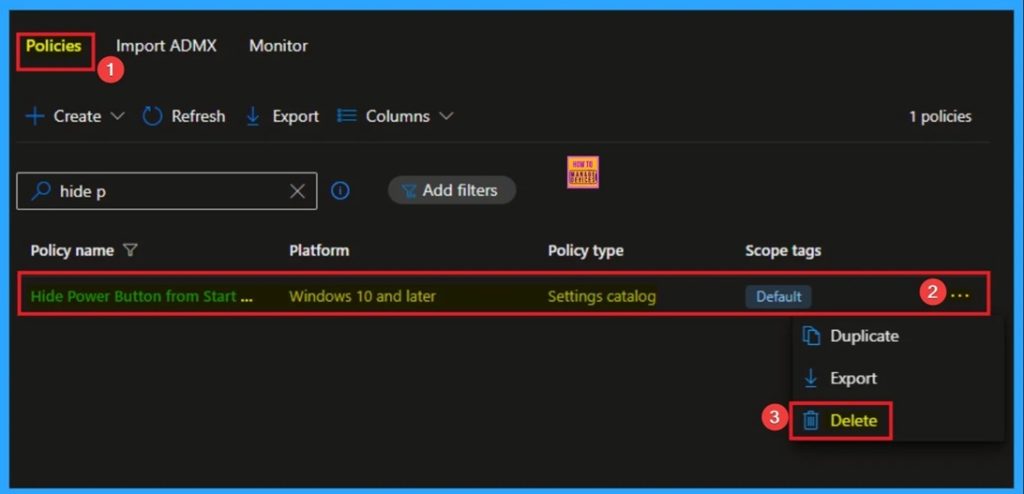
💫How to Hide Shutdown Restart Sleep and Hibernate from Start Menu using Intune Policy
–https://www.anoopcnair.com/hide-shutdown-restart-sleep-from-start-Intune/
🎀Hide Power Button from Start Menu
🎀Easily Hide How to Hide Shutdown Restart Sleep and Hibernate
🎀How this Policy Helps Admin?
🎀Example of Applicable Scenario
🎀Monitoring Status
🎀Client-Side Verification
Thursday 31st July 2025
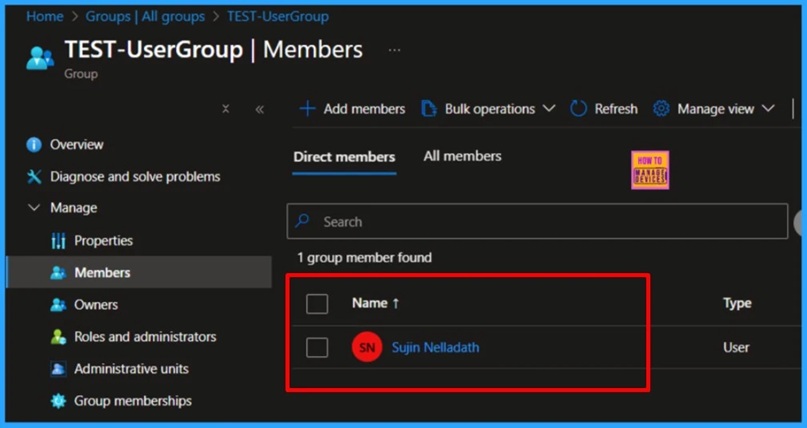
🎆Add Microsoft Entra Users to Group Membership using Microsoft Graph API and PowerShell Script
–https://www.anoopcnair.com/entra-users-to-group-membership-graph-api/
🔥What is Microsoft Graph?
🔥Add Microsoft Entra Users to Group Membership
🔥Efficiently Assign a Predefined Set of Permissions to All Members
🔥How to Get Object ID of the Target Group
🔥How to Get Object ID of the Target User
🔥How to Add a User to an Intune Group
🔥PowerShell Script to Add Multiple Users to an Intune Group
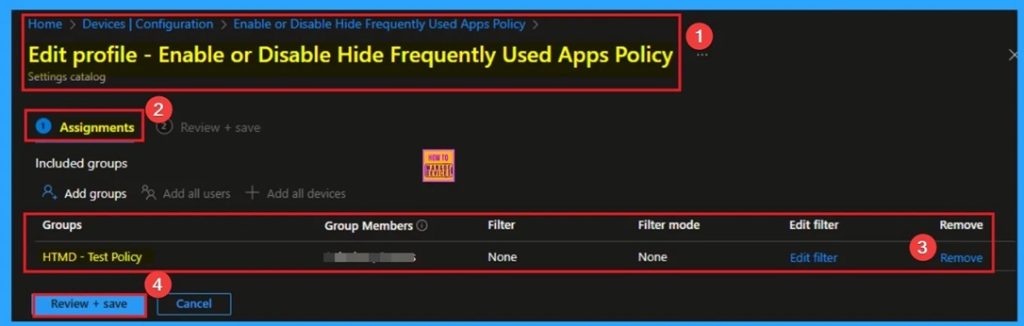
💫Hide Frequently Used Apps from Start Menu using Intune Policy
–https://www.anoopcnair.com/hide-frequently-used-apps-from-start menu-Intune/
🎀Hide Frequently Used Apps from Start Menu
🎀Curated List of Programs that Windows Identifies
🎀Benefits of Hide Frequently Used Apps Policy
🎀How this Policy Helps Admin?
🎀Example of Applicable Scenario
🎀Monitoring Status
🎀Client Side Verification
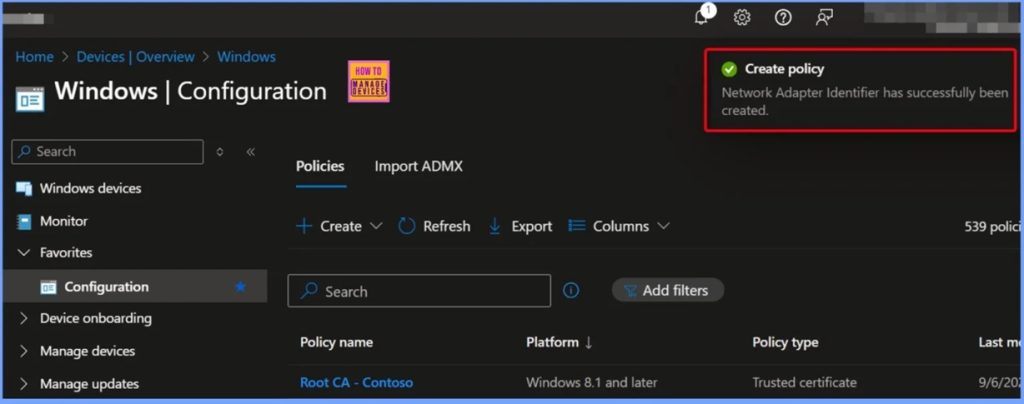
🎆How to use Intune Inventory to Query Network Adapters on Windows Devices
–https://www.anoopcnair.com/intune-to-query-network-adapters-on-windows/
🔥Network Adapters on Windows Devices
🔥Overview – Network Adapter Inventory in Intune
🔥Inventory and Bulk Device Query
🔥Real-Time Multi-Device Assessment
🔥End Result
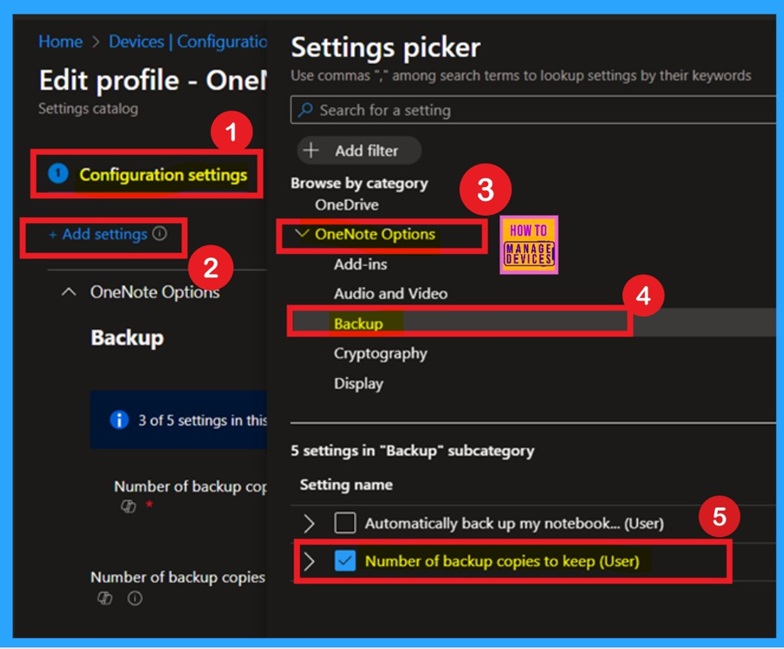
🎆Enable or Disable OneNote Backup Copies to Keep Policy in MS Intune
–https://www.anoopcnair.com/onenote-backup-copies-to-keep-policy-intune/
🔥Number of Backup Copies to Keep (User)
🔥Ensures older versions of user Data are Retained for Recovery Purposes
🔥Helps Recover to Accidentally Deleted Content
🔥What will Happen when We Enable the Policy?
🔥Is this Policy Being Secure for Organizations?
🔥Monitoring Status
🔥Client-Side Verification
Friday 1st August 2025
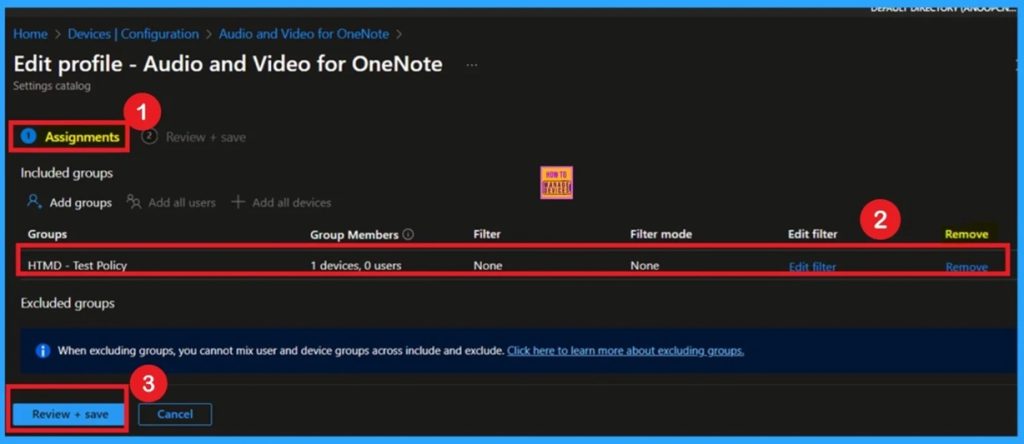
🎆Enable Disable OneNote Audio Search for User Policy using Intune
–https://www.anoopcnair.com/onenote-audio-search-for-user-using-intune/
🔥Audio Search Policy
🔥Helps Organizations Enhance Privacy Controls
🔥Optimizes Performance by Limiting Resource-Intensive Indexing
🔥Is this Setting being Secure For Organizations
🔥Users Can Search for Spoken Words within Audio Recordings Saved in OneNote
🔥Monitoring Status
🔥Client-Side Verification
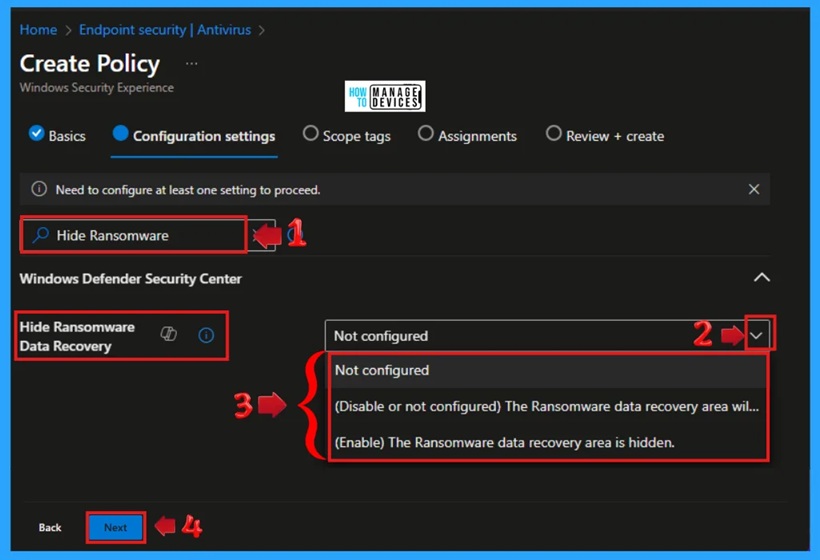
📌Managing Visibility of the Ransomware Data Recovery Area in Windows Security
–https://www.anoopcnair.com/ransomware-data-recovery-area-windows-security/
➡What is Ransomware?
➡How to Hide and Show Ransomware Data Recovery Area in Windows Security
➡Local Group Policy
➡Registry File
➡Intune Policy
➡Important Considerations
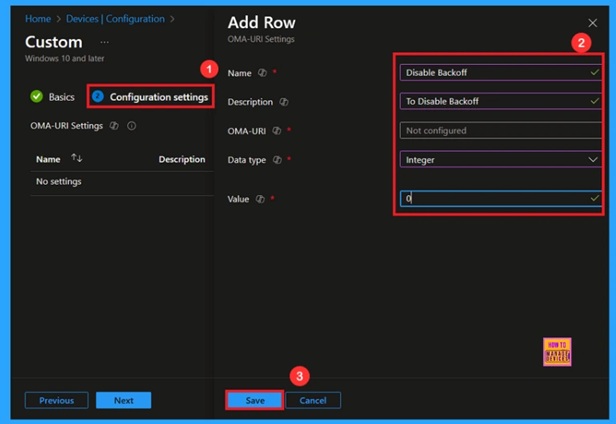
🎆Customize Windows Search Indexing Behavior using Intune’s Backoff Policy
–https://www.anoopcnair.com/search-indexing-behavior-intunes-backoff-policy/
🔔Enable or Disable Backoff Policy
🔔Helps Reduce Network Congestion
🔔Improves System Performance and Stability
🔔Provides Efficient Error Handling
🔔Device and User Check-in Status
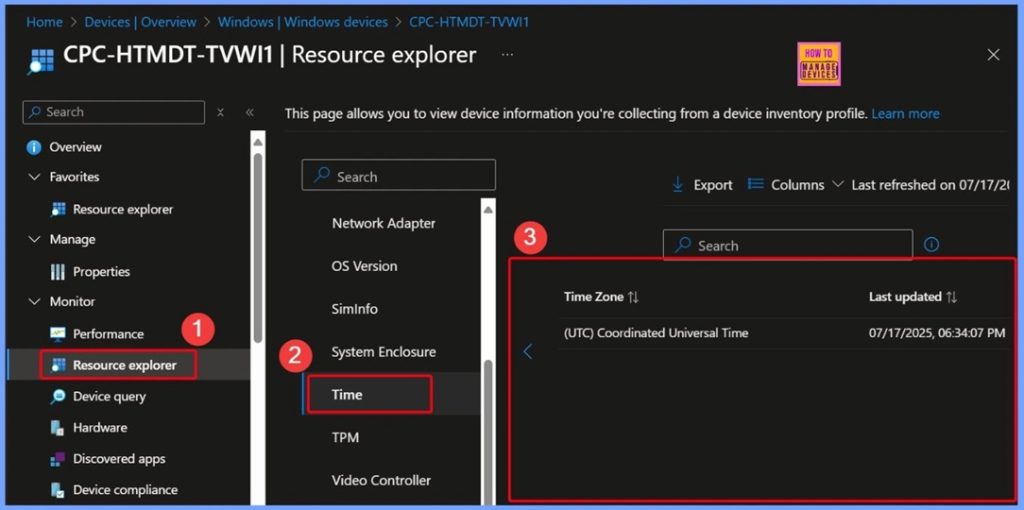
🎆How to Track Time Zone Information from Windows Devices using Intune Inventory
–https://www.anoopcnair.com/time-zone-information-from-windows-Intune/
🔥Introduction – Tracking Time Zone Information using Intune Inventory
🔥Supported Platforms
🔥Enhancing Security and Operational Accuracy
🔥Managing Devices Across Multiple Regions
🔥End Result
🔥Collected Important Details Related to the Time Zone
HTMD Daily Intune Tips
How to Easily Enable or Disable Device Password History Policy using Microsoft Intune Security Policy #msintune
–https://youtube.com/shorts/U62sc3CCjck
Learn how to configure the Device Password History policy in Microsoft Intune! This essential security setting prevents users from reusing recent passwords, significantly enhancing your organization’s security posture and helping meet compliance requirements.
In this step-by-step tutorial, we’ll guide you through:
✅ Creating a new configuration profile in Intune.
✅ Selecting the ‘Settings catalog’ profile type for Windows 10 and later devices.
✅ Searching for and adding the ‘Device Password History’ setting.
✅ Enabling the device password and setting the number of past passwords to remember.
Understanding and implementing password history policies is vital for preventing credential stuffing attacks and maintaining strong cybersecurity hygiene. Watch now to secure your endpoints effectively!
This video demonstrates how to enable or disable the Device Password History Policy using Microsoft Intune—a cloud-based endpoint management tool by Microsoft. The policy controls how many unique passwords must be used before an old password can be reused on a device.
Key Steps in the Video
Accessing Intune: The process starts from the Microsoft Intune admin center.
Navigating to the Policy: The user goes to the configuration settings to manage device password policies.
Enabling/Disabling Password History: The admin sets the password history value (e.g., how many previous passwords are remembered and can’t be reused).
Enabling: Increases the count, making password reuse more difficult.
Disabling (setting to 0): Allows users to reuse their previous password.
Why Do Organizations Enable This Policy?
Security Best Practice: Prevents users from cycling through the same passwords, reducing the risk of compromised credentials.
Compliance: Many regulations (like HIPAA, PCI DSS) require password history enforcement to protect sensitive data.
Defense Against Attacks: If a password is leaked, old ones can’t be reused, ensuring that attacks exploiting known passwords are less effective.
Real-World Example (Enable)
A financial firm enforces a history of 24 passwords, ensuring employees can’t use any of their last 24 passwords, satisfying industry compliance and making social engineering less effective.
Deliver Taskbar – Notification Area and Get Started App – Organizational Messages using Intune #msintune #windows11 #htmdcommunity
–https://youtube.com/shorts/czpXF1pCWy4
“Enable delivery of organizational messages (User)”
This Intune policy is a crucial component for organizations using Microsoft Intune to manage their Windows 11 devices. It acts as a master switch that allows or disallows the delivery of “organizational messages” directly to end-users within their Windows 11 experience.
Related Intune Policies: Other “Experience” category policies in Intune might need to be enabled or configured, such as:
Allow Windows Spotlight (User)
Allow Windows Spotlight on Action Center (User)
Allow Windows Tips
Configure Windows Spotlight on Lock Screen (User) (ensure this is not deselected or blocked)
Disable Cloud Optimized Content (ensure this is #NOT #ENABLED, especially for Get Started app messages)
What are Organizational Messages?
Organizational messages are a feature in Windows 11 that enables IT administrators to send custom, branded messages to users through specific built-in Windows experiences. These messages are designed to be a more direct and effective communication channel than traditional email, especially for important or time-sensitive information.
There are three primary locations where these messages can appear:
Taskbar Messages: These appear just above the user’s taskbar and remain visible until the user interacts with them (e.g., clicks a button or closes the message). They are ideal for urgent notifications.
Notification Area Messages: These appear as pop-up notifications in the Windows Notification Center and then disappear, similar to standard application notifications. They are suitable for informational, non-disruptive messages.
Get Started App Messages: These messages appear within the “Get Started” app, particularly useful for onboarding new employees or providing essential information during device setup.
Why Organizations Enable or Disable Edge Browser Full-Screen Mode Intune Policy? #msintune #htmdcommunity
–https://youtube.com/shorts/rQ90muPr6X8
Organizations carefully consider this policy based on their security posture, user experience goals, and specific operational needs.
The “Edge Browser Allow Full Screen Mode” policy is important because it allows organizations to:
Control User Experience: Dictate how users interact with the browser, whether it’s for maximum focus, immersive displays, or standard multi-tasking.
Enhance Security: While not a standalone security feature, it plays a role in creating secure, locked-down environments (kiosks) and can contribute to transparency for monitoring in sensitive work contexts.
Improve Productivity: By eliminating distractions or conversely, by ensuring seamless access to other tools, the policy can directly impact how efficiently users perform their tasks.
Reduce IT Overhead: By preventing accidental full-screen activations or standardizing the Browse experience, it can reduce the number of support requests.
Maintain Compliance: In environments with strict auditing or usage requirements, controlling full-screen mode can be part of a broader compliance strategy.
Reasons to Disable Full-Screen Mode
Security and Monitoring: Prevents users from obscuring system elements (like taskbar or notifications) that monitoring tools may need to access. This is particularly important in high-security environments or shared/public computers (kiosks, schools, libraries).
Phishing Prevention: Disabling full-screen mode helps reduce the risk of full-screen phishing attacks, where malicious websites mimic system dialogs or mask the address bar.
User Experience Control: Maintains a consistent interface, especially on shared or managed devices, ensuring that users do not hide navigation elements.
Real-world Examples:
Kiosk Devices in Banks/Retail: Restricting full screen to keep company branding, navigation, or emergency exit options visible at all times.
Educational Labs: Ensures students stay within allowed applications and cannot hide screen activity from supervision.
Reasons to Enable Full-Screen Mode
Immersive Presentations: For environments where presentations, videos, or web-based applications require distraction-free viewing.
Web-based Kiosks (allowed content): Interactive exhibits, digital signage, or demo stations benefit from using the whole display.
Call Centers: When agents need full focus on web apps.
Significance for Organizations:
Compliance: Assists with adhering to industry or internal IT regulations about device usage.
Security: Reduces attack vectors (when disabled) and enhances usability (when enabled for specific needs).
Productivity: Policies can be tailored based on user roles to balance security and operational needs.
📻Power Sleep Settings for Executive laptops Digital signage devices Call center computers #MSIntune
–https://youtube.com/shorts/bcDaODVBktE
▶️Intune Power Sleep Settings Explained: Enhance Security & Efficiency | IT Admin Guide
▶️Mastering power management is crucial for any IT administrator
▶️This video offers a detailed breakdown of Windows Power Sleep Settings, how they’re configured via Microsoft Intune, and why they’re so important for organizations.
📻What is the Perfect Active Hours Range Policy for Patching Scenarios via Intune 18 Hours or 9 Hours #msintune
–https://youtube.com/shorts/I0LOdPBv22Q
▶️By default, without any configuration, Windows sets a default active hours range of 18 hours.
▶️Enabled: Admins can set a custom active hours range (8–18 hours); restarts for updates are blocked inside this window.
▶️Disabled/Not Configured: Windows defaults to the broadest allowed range (18 hours) unless otherwise specified.
Connect with the HTMD Community
Join the Telegram group to get the latest step-by-step guides and news updates. Join our Meetup Page to participate in User group meetings. Also, join the WhatsApp Community to get the latest news on Microsoft Technologies. We are there on Reddit as well.
HTMD Community Social Media Platform Links
| Social Media Platform | Link |
| LinkedIn: HTMD Community | https://www.linkedin.com/company/how-to-manage-devices/ |
| Telegram: SCCM Intune Technical Discussions | https://t.me/joinchat/Q9lE6G1_BO_bGq97 |
| Telegram: JOB SCCM Intune Group | https://t.me/joinchat/SIKr3OugR2FQ-Ej9 |
| WhatsApp: HTMD Community | https://chat.whatsapp.com/CeMXHSD61HtDBJwe78IZwV |
| Telegram: AVD/Windows 365 User Group | https://t.me/Inwvdcommunity |
| https://www.facebook.com/HTMDCommunity | |
| https://www.instagram.com/htmd_community/ | |
| https://twitter.com/htmdcommunity | |
| Facebook Group: SCCM | https://www.facebook.com/groups/ConfigMgr2012/ |
| Facebook Group: Intune | https://www.facebook.com/groups/1738789256382744 |

Anoop C Nair is Workplace Technology solution architect with 25+ years (as of 2026) of experience in global enterprise organizations such as JP Morgan, Capgemini, etc. Microsoft Certified Trainer (MCT). Microsoft MVP from 2015 onwards for consecutive 11+ years! He also conducts Intune and modern workplace tech training for enterprise organizations. He is Blogger, Speaker, and Founder of HTMD Community and HTMD Conference. His main focus is on Device Management technologies like Intune, Windows, Cloud PC. He writes about technologies like Intune, SCCM, Windows, Cloud PC, Windows, Entra, Microsoft Security.
Discussion