












203rd HTMD Newsletter 21st to 25th July 2025
Welcome to the 203rd HTMD Newsletter, 21st to 25th July 2025! This is the list of posts and videos the HTMD Community published this week, and news from the IT industry. You can get all the information and details from Windows 11, Cloud PC, SCCM, Intune, Azure Virtual Desktop (AVD), Android, iOS, and Mac.
Previous Weeks Newsletters
- 200th HTMD Newsletter – HTMD Newsletter 30th June to 4th July 2025
- 201st HTMD Newsletter – HTMD Newsletter 7th to 11th July 2025
- 202nd HTMD Newsletter – HTMD Newsletter 14th to 18th July 2025

Monday 21st July 2025
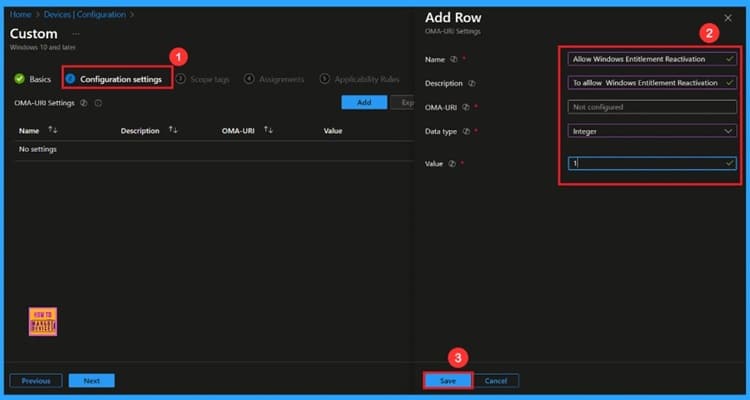
🎆Allow or Block Windows Entitlement Reactivation using Intune Policy
–https://www.anoopcnair.com/allow-or-block-windows-entitlement-reactivation/
🔔Allow or Block Windows Entitlement Reactivation
🔔Helps with License Recovery
🔔Provides Digital Entitlement
🔔Improves IT Efficiency
🔔Device and User Check-in Status
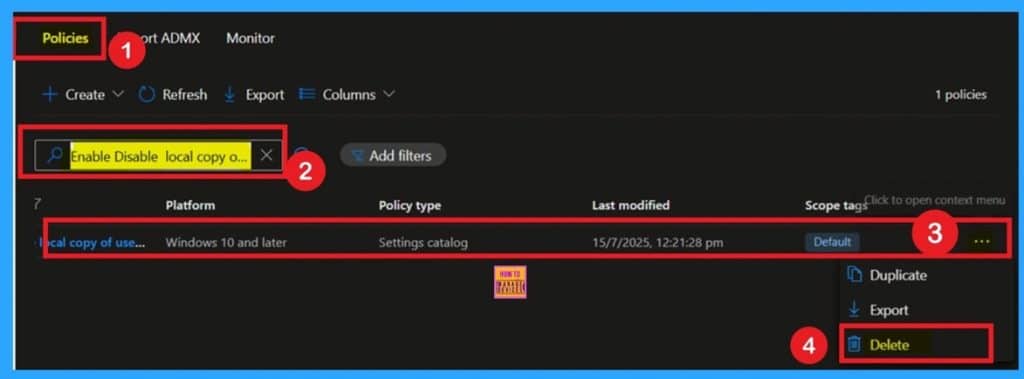
📌Enable Disable Local Copy of User’s Offline Files Policy using Intune
–https://www.anoopcnair.com/local-copy-of-users-offline-files-using-intune/
🎊Local Copy of User’s Offline Files Policy
🎊Removes All Locally Stored Copies of Offline Files
🎊Allow Access to Network Files
🎊What Types of Offline Files are Affected by this Setting?
🎊Files are Synced with the Server
🎊Reduces Storage Clutter
🎊Does this Setting Affect Policy Security?
🎊OMA-URI Settings
🎊Client-Side Verification
📌 How to Create New Platform Specific Device Clean-up Rule in Intune
–https://www.anoopcnair.com/platform-specific-device-clean-up-rule-intune/
💡What is Platform Specific Device Clean-up Rules in Intune
💡Key Highlights of Intune’s Platform Specific Device Cleanup Rule
💡Create New Platform Specific Device Clean-up Rule in Intune
💡New Platform Specific Device Clean-up Rule Verification
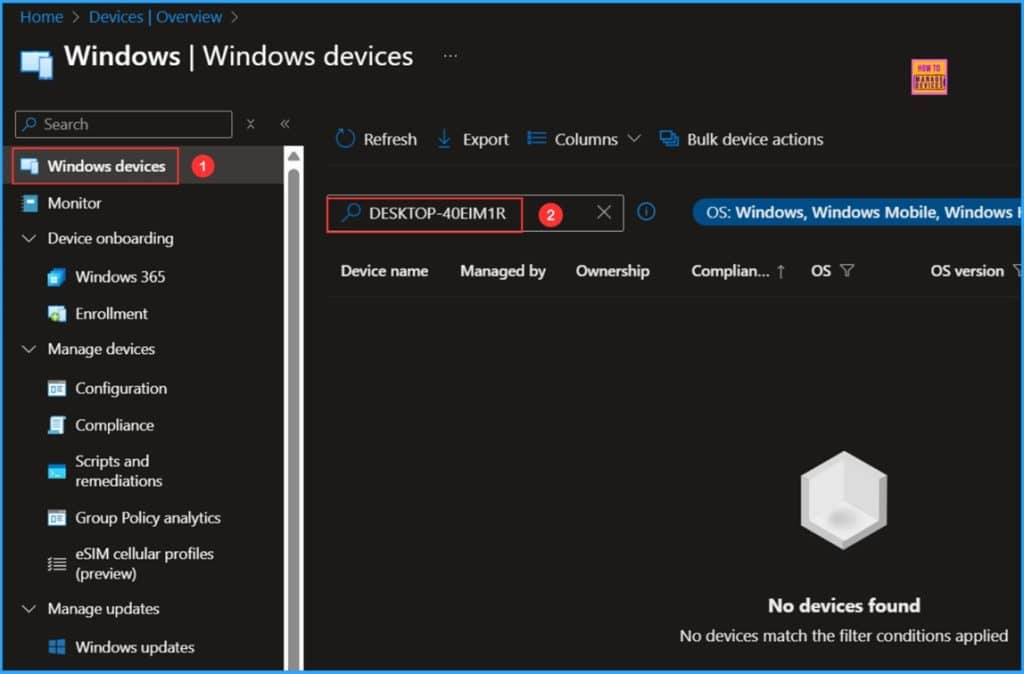
🎆How to Fix Intune Autopilot Hardware Hash Null-Valued Expression Error
–https://www.anoopcnair.com/hardware-hash-null-valued-expression-error/
🔥Null-Valued Expression Error
🔥Issue Occurred While Trying to Download the Hardware Hash for Autopilot
🔥Issue in PowerShell Script
🔥Reasons of the Issue
🔥Workarounds for the Issue
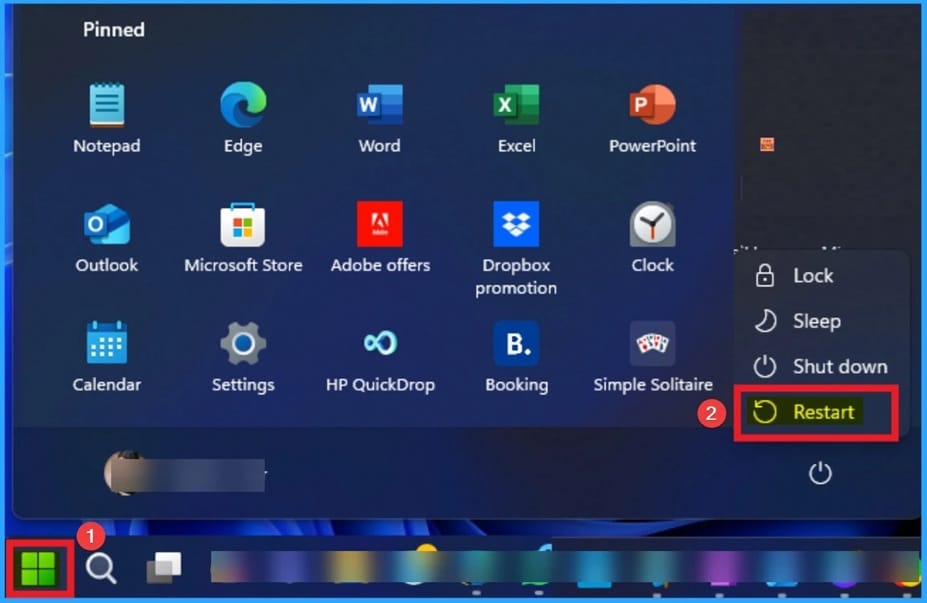
Tuesday 22nd July 2025
Mastering macOs Packaging & Deploy via #msIntune | Why Package Software for macOS | convert APP to PKG
–https://youtu.be/WoIPA89TZfg
Consistent Deployments: Packaging ensures uniformity across all devices, reducing the chance of misconfigurations.
Ease of Installation: Packages simplify installations, especially for apps with complex structures or dependencies.
Automation & Management: Packaging apps allows integration with MDM Tools like Intune, JAMF for automated deployment

🎆How to Configure Active Hours Max Range Policy using Intune
–https://www.anoopcnair.com/active-hours-max-range-policy-using-intune/
🔥Basic Profile Details – Active Hours Max Range Configuration
🔥Configuration Settings
🔥Selecting the Active Hours Max Range Setting from the Settings Catalog
🔥Understanding the Impact of the Active Hours Max Range Policy
🔥Active Hours Max Range Policy
🔥Assigning the Policy to Targeted Groups in Intune
🔥What Is the Review + Create Tab in Intune?
🔥Monitoring Status
🔥ActiveHoursMaxRange Windows CSP Details
🔥Client Side Verification
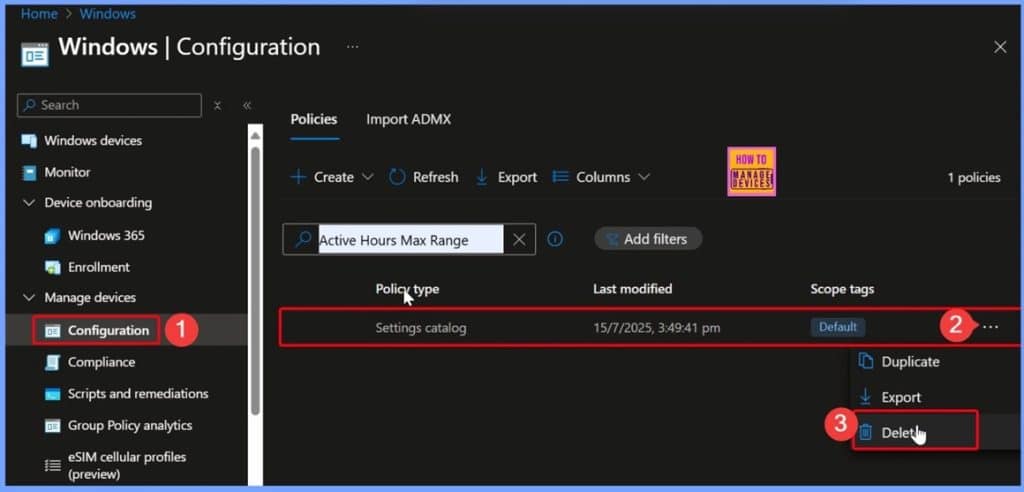
💫Enable or Disable Favorites Bar Policy in MS Edge Browser using Intune
–https://www.anoopcnair.com/favorites-bar-policy-in-ms-edge-using-intune/
🎀Favorites Bar Policy in MS Edge Browser
🎀Quick Access for Frequently Used Bookmarks
🎀Improve Productivity
🎀Horizontal Toolbar Appear Below Microsoft Edge Address Bar
🎀Steps to Configure Favorites Bar Policy
🎀Monitoring Status
🎀Client-Side Verification
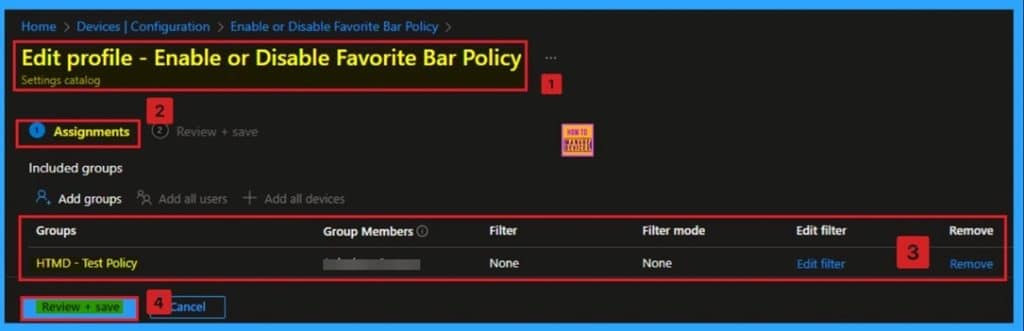
🎆How to Collect Disk Drive ID Details using Intune Property Catalog
–https://www.anoopcnair.com/disk-drive-id-details-intune-property-catalog/
🔥How to Collect Disk Drive ID Details
🔥Basic Details of Disk Drive
🔥Configuration Properties Settings
🔥Disk Drive in Properties Picker
🔥Review and Manage Selected Properties in Configuration Settings
🔥Using Scope Tags to Limit Admin Access
🔥Assigning the Policy to a Group in Intune
🔥Review + Create in Intune Configuration
🔥Disk Drive Successfully Created
🔥End Result
🔥Collected Important Details Related to the Disk Drive
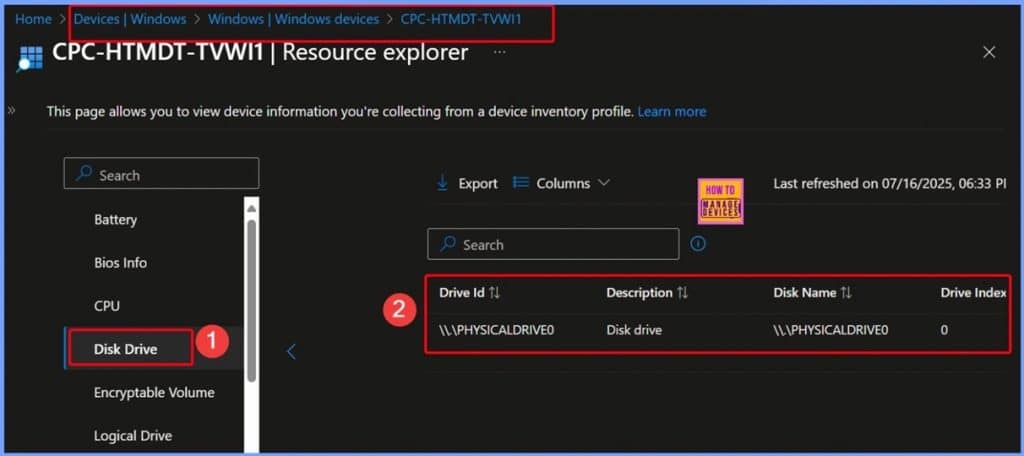
📌Block Network Printing Restrictions using Intune Settings Device Control Printing Restrictions
–https://www.anoopcnair.com/network-printing-restrictions-using-intune/
🎊Printers to be Published Policy
🎊Controls to Publish Shared Printers to Active Directory
🎊When should you Disable this Policy?
🎊Located under Administrative Templates
🎊How this Policy Affected to the Organizations
🎊Device and User Check in Status
🎊OMA-URI Settings
🎊Client-Side Verification
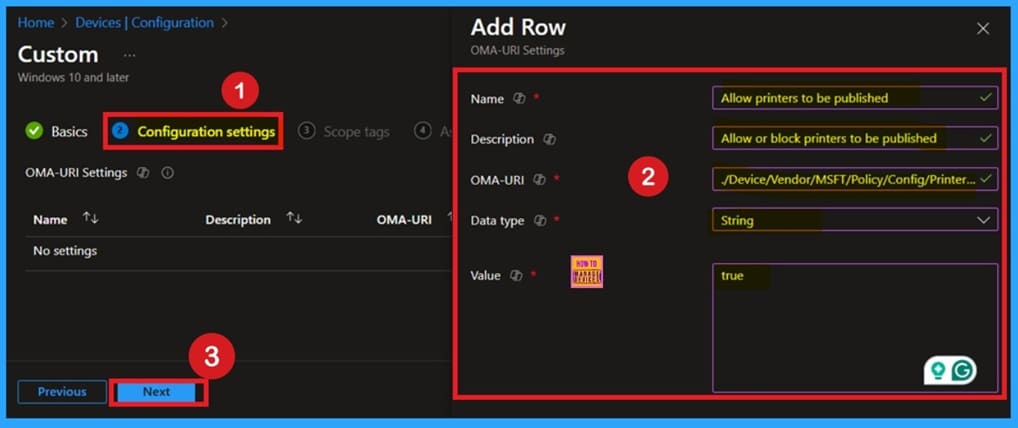
Wednesday 23rd July 2025
📌Control System Lock Screen Policy for Users with Intune
–https://www.anoopcnair.com/lock-screen-policy-for-users-with-intune/
➡System Lock Screen Policy
➡Prevents Manual Locking
➡Locking Allowed by Users
➡What is the Purpose of this Policy in Organization?
➡Device and User Check-in Status
➡Client-Side Verification
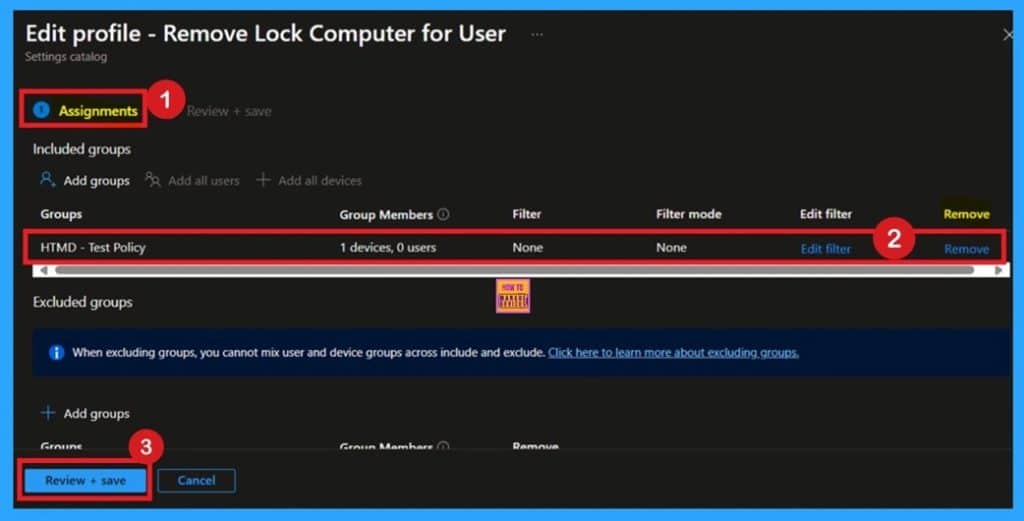
📌How to Resolve Issue on Hybrid Entra ID Device Stuck in Pending During Intune Enrollment
–https://www.anoopcnair.com/hybrid-entra-id-device-stuck-in-pending-intune/
💡Issue on Hybrid Entra ID Device Stuck in Pending
💡Issue Occurred During Intune Enrollment
💡After Effects of the Issue
💡Reasons of the Issue
💡Different Workarounds
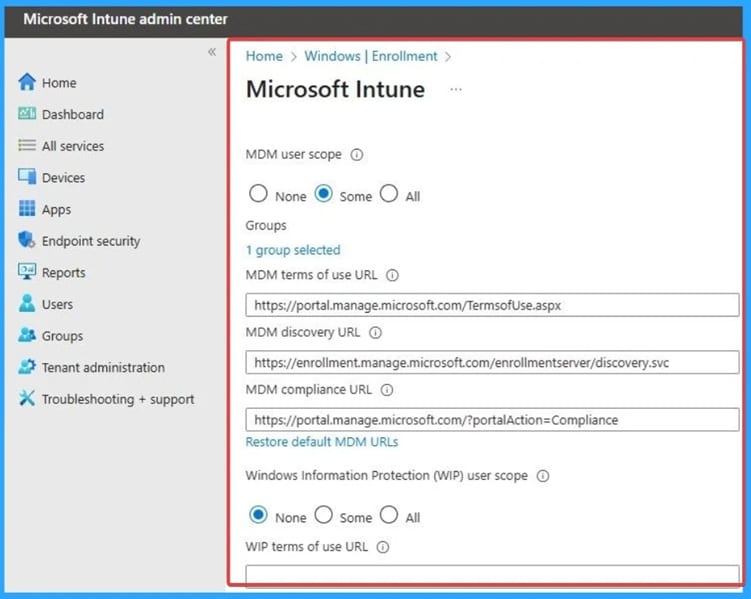
🎆How to Fix WebView Authentication Failure in Intune Connector v6.2505.2001.2 on Windows Server 2016 or 2019
–https://www.anoopcnair.com/authentication-failure-in-intune-connector/
🔥WebView Authentication Failure in Intune Connector
🔥Issue on Intune Connector v6.2505.2001.2
🔥Issue Occurred During Sign in
🔥Fix WebView Authentication Failure Issue
🔥Reasons of the Issue
🔥Different Resolution
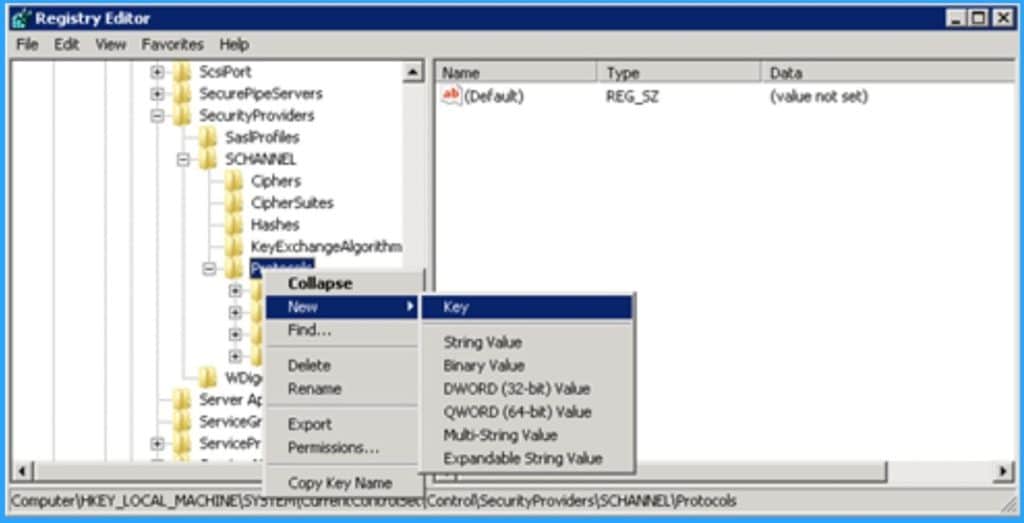
🎆What is Cloud Sourced Notifications Policy to Enhance Privacy and User Experience using Intune
–https://www.anoopcnair.com/cloud-sourced-notifications-policy-using-intune/
🔔Allow or Disallow Cloud Notification Policy
🔔Helps Control Unwanted Cloud Alerts
🔔Improve Data Protection
🔔Provides Security for the Organization
🔔Device and User Check-in Status
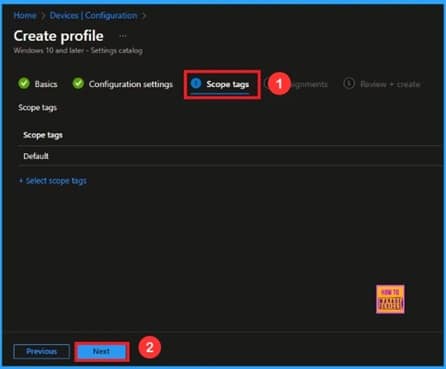
Thursday 24th July 2025
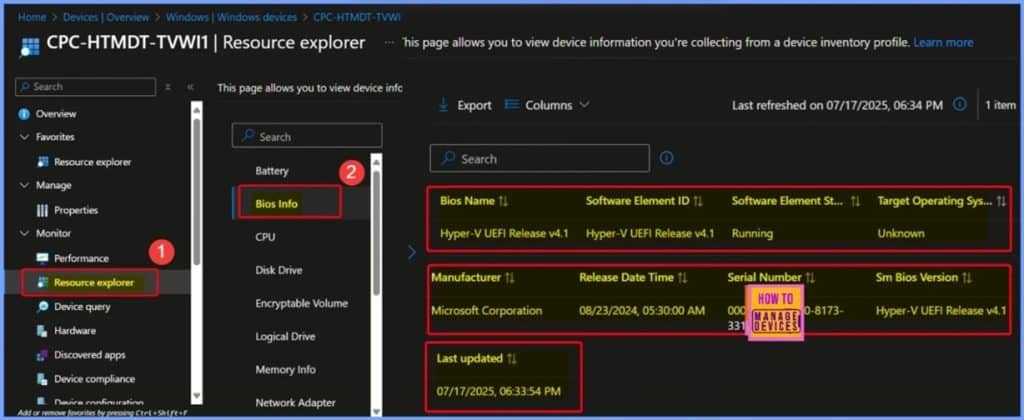
🎆How to use Intune to Collect BIOS Information from Windows Devices
–https://www.anoopcnair.com/intune-to-collect-bios-informations-windows/
🎊Bios Info using Intune Policy
🎊BIOS Basic Information Details
🎊Configuration Properties
🎊Decide Who or What will Receive a Specific Policy
🎊Final Checkpoint
🎊End Result
🎆How to Fix Issue on Windows Update Deployment using Intune for No Logged-in Users
–https://www.anoopcnair.com/issue-on-windows-update-deployment-using-Intune/
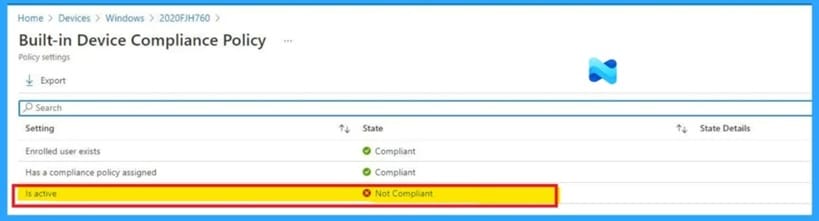
🔥Issue on Windows Update Deployment
🔥Deployment Issue Occurred for No Logged-in Users
🔥Different Reasons of the Issue
🔥How Windows Update Helps to Resolve this Issue?
🔥After Effects of the Issue
🔥Different Resolution
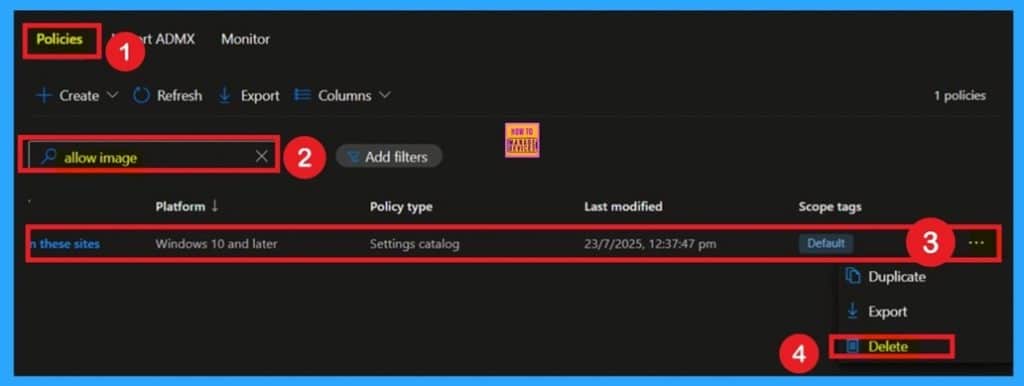
🎉Image Loading Configuration for Websites using Intune Policy
–https://www.anoopcnair.com/image-loading-configuration-for-websites-Intune/
🎯Images on Specified Websites
🎯Prevents Display of Unsafe Images
🎯Limits Risks from Unknown Web Sources
🎯What Does this Policy Do?
🎯Can this Policy Improve Security?
🎯Monitoring Status
🎯Client-Side Verification
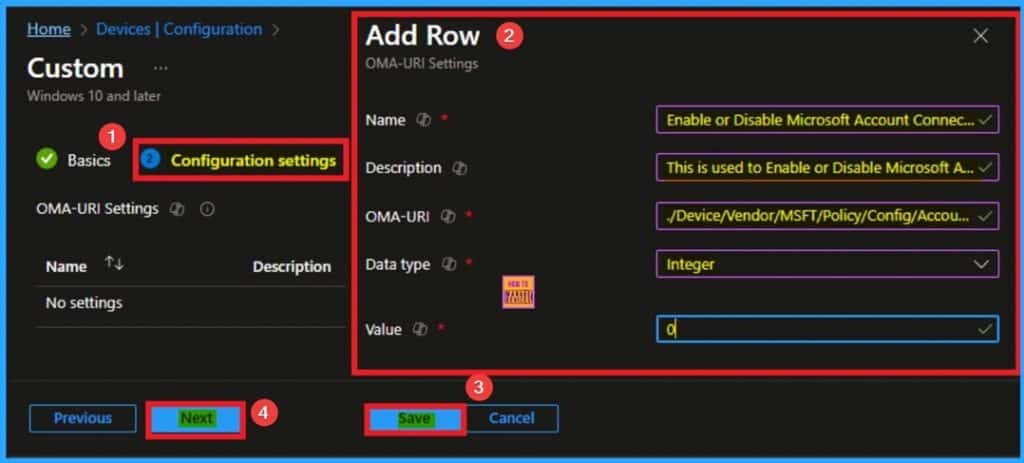
💫Enable or Disable Microsoft Account Connection Policy using Intune
–https://www.anoopcnair.com/microsoft-account-connection-using-intune/
🎀Microsoft Account Connection Policy in Windows
🎀Specifies whether the user is Allowed to Use an MSA Account
🎀Security Benefits of Account Management Connection Policy
🎀How this Policy Helps Admin?
🎀Steps to Configure Microsoft Account Connection Policy
🎀Monitoring Status
🎀Client-Side Verification
Friday 25th July 2025
🎆How to Retrieve CPU Information from Windows Devices using Intune
–https://www.anoopcnair.com/cpu-information-from-windows-devices-intune/
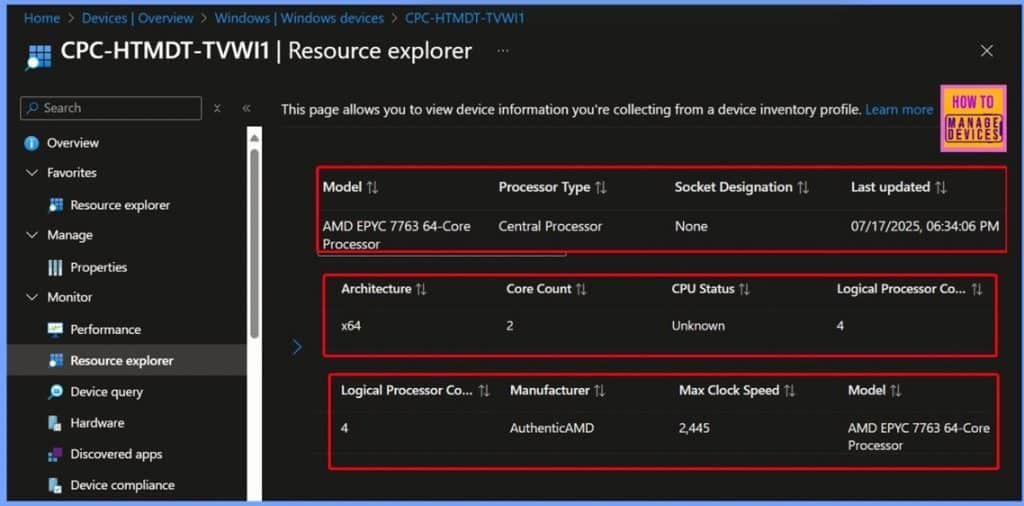
🔥What CPU Details are Collected by Intune?
🔥How Intune Collects CPU Information from Windows Devices
🔥Why CPU Inventory Data is Important for IT Admins
🔥CPU Information Policy
🔥End Result
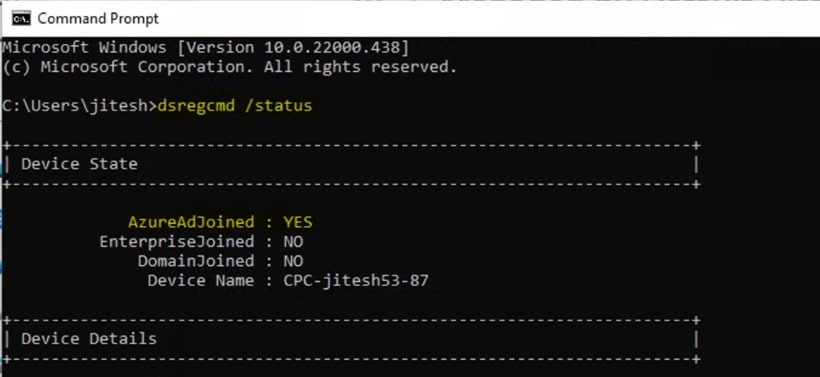
📌 How to Create a New Windows 365 Provisioning Policy in Intune
–https://www.anoopcnair.com/new-windows-365-provisioning-policy-in-intune/
💡Windows 365 PC OS image gallery details
💡Create a New Windows 365 Provisioning policy in Intune
💡Monitor the New Windows 365 Provisioning Policy Deployment
💡End User Experience
🎆How to Resolve Intune Android APK Deployment Failure via Managed Google Play
–https://www.anoopcnair.com/resolve-intune-android-apk-deployment-failure/
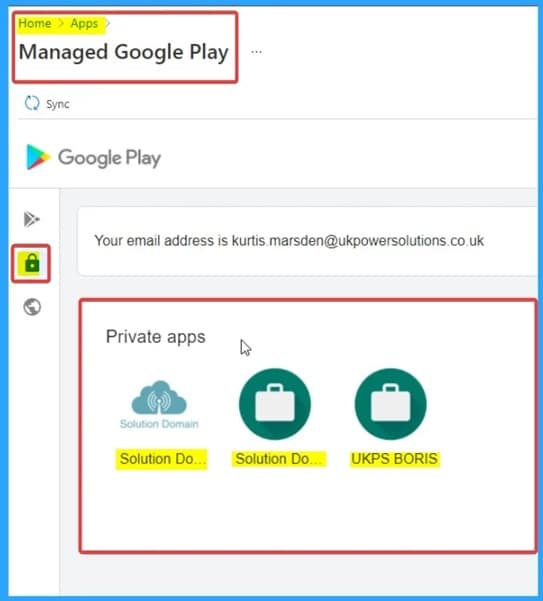
🔥Issue on Android APK Deployment
🔥Deployment Issue Occurred Syncing
🔥APK Fails to Sync or Appear in the App Library
🔥After Effects of the Issue
🔥Different Resolution
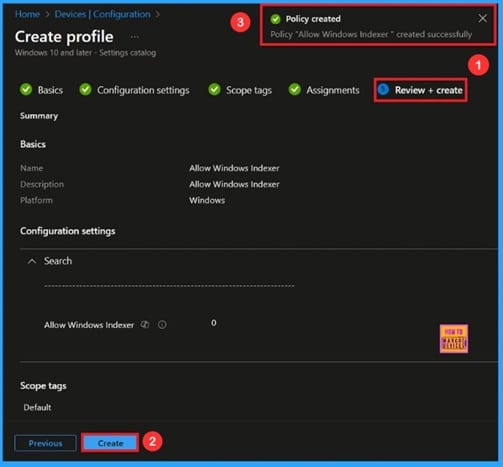
🎆Enable Windows Indexer Policy to Speed up Search Result using Intune
–https://www.anoopcnair.com/windows-indexer-policy-speed-up-search-intune/
🔔Improves Search Performance
🔔Provides Control over Indexing Locations
🔔Advantages of Windows Indexer Policy
🔔Helps Enhance Security and Compliance
🔔Device and User Check-in Status
HTMD Daily Intune Tips
Why are Organizations disabling GitHub Copilot using Intune? Unintentional Code Reuse? #msintune
–https://youtube.com/shorts/Vz77ttZm2NY
Organizations choose to disable GitHub Copilot in Visual Studio, or other IDEs, primarily due to concerns surrounding intellectual property (IP) and copyright, data privacy, security vulnerabilities, and code quality/compliance.
While Copilot offers significant productivity benefits, these risks can outweigh the advantages for many enterprises, especially those in highly regulated industries or dealing with sensitive information.
Here’s a breakdown of the reasons, with real-world examples illustrating the concerns:
Code Quality and Compliance
Inconsistent Coding Standards: A large tech company with a mature codebase and established architectural patterns might find Copilot’s suggestions deviate from their preferred style guides (e.g., naming conventions, error handling, design patterns). While individual developers could manually correct this, it adds overhead and can lead to “code debt” if not consistently managed, making future development and maintenance more difficult.
Over-reliance and Skill Erosion: A software consultancy prides itself on the expertise of its engineers. If developers rely too heavily on AI tools, the firm might fear that their team’s ability to innovate independently, debug complex issues, or design robust solutions from scratch could diminish over time, impacting their long-term competitive advantage.
In summary, while the allure of increased productivity from AI coding assistants like GitHub Copilot is strong, organizations often prioritize security, legal compliance, and the long-term health and integrity of their codebases. The potential risks associated with intellectual property, data leakage, and the introduction of vulnerabilities lead many to implement policies to disable such tools, especially in sensitive development environments.
Intellectual Property (IP) and Copyright Concerns
Imagine a financial institution developing proprietary trading algorithms. If Copilot suggests code that closely resembles an algorithm developed by a competitor and publicly available in a less restrictive license, it could lead to accusations of copyright infringement and serious legal battles, potentially costing millions in damages and reputational harm. Companies are wary of unwittingly incorporating code that could put their products or services at legal risk.
Ambiguity of Code Ownership:A software company relies heavily on its unique algorithms and codebases for its competitive edge. If a significant portion of new code is generated by Copilot, it could complicate patent applications or trade secret protections, making it harder to prove original ownership and defend against future challenges.
Data Privacy Concerns
A defense contractor working on highly classified projects cannot risk any part of their codebase, even snippets, leaving their secure environment. The possibility of sensitive defense-related code being transmitted to a third-party server, regardless of GitHub’s assurances, is a non-starter due to national security regulations and compliance.
Compliance Risks (GDPR, HIPAA, etc.): A healthcare provider developing patient management software has a legal obligation to protect patient data under HIPAA. If a developer’s IDE, with Copilot enabled, sends code snippets containing mock patient data (even for testing) to the Copilot service, it could be a HIPAA violation, leading to severe fines and loss of trust.
Security Vulnerabilities
A banking application needs extremely robust security. If Copilot suggests a common but vulnerable authentication pattern (e.g., using weak hashing algorithms or improper input sanitization for SQL queries) that was present in its training data, and a developer implements it without thorough review, it could introduce a critical security flaw, making the application susceptible to attacks like SQL injection or cross-site scripting (XSS).
“Poisoned Data” Concerns: A cybersecurity firm developing security tools cannot afford to have any backdoors or intentionally vulnerable code in their products. The theoretical risk of a poisoned suggestion, however small, is enough to warrant disabling such tools to maintain the highest level of trust and integrity in their own security offerings.

Security Control over Network Printer using Intune Policy
–https://youtube.com/shorts/1jEQg6qEjWM #msintune #htmdcommunity
In today’s digital landscape, securing sensitive information is paramount for any organization. We often focus on cybersecurity threats like malware and phishing, but what about the physical realm? Specifically, how do we prevent unauthorized data from leaving our premises through something as common as printing?
That’s where powerful tools like Microsoft Intune come in. Intune allows IT administrators to manage and secure devices and applications from the cloud.
Today, we’re going to talk about a specific, yet crucial, setting within Intune: the “Enable Device Control Printing Restrictions” policy.
So, what exactly is this policy? In simple terms, it’s a security measure that allows organizations to control, restrict, or even block printing capabilities on Windows 10 and later devices managed through Intune.
We achieve this by creating a configuration profile and, through the ‘Settings Catalog’, searching for and enabling the ‘Device Control Printing Restrictions’ under ‘Administrative Templates’.
But why would an organization set such a restriction? The reasons are multifaceted and critical for maintaining a robust security posture:
Cost Control and Efficiency
In essence, the “Enable Device Control Printing Restrictions” policy is more than just a technical setting; it’s a strategic tool for safeguarding an organization’s most valuable asset: its data. By leveraging Intune to manage these restrictions, businesses can enhance their security framework, ensure compliance, and streamline their operations, ultimately building a more secure and efficient environment.
Data Loss Prevention, or DLP
Security and Compliance

➡️Organizations choose to disable File Explorer Recent Items using #MSIntune | Cloud File Metadata
–https://youtube.com/shorts/5d9F1VuLQOI
Organizations choose to disable “Graph Recent Items” in File Explorer, which prevents it from requesting cloud file metadata or displaying recently accessed files, for several key reasons, primarily related to privacy, security, performance, and user experience/data governance.
Here’s a breakdown of the motivations:
User Experience and Data Governance:
Clutter Reduction: Some users and organizations find the “Recent Items” list in Quick Access to be visually cluttered or distracting, especially if they work with a large volume of different files throughout the day. Disabling it provides a cleaner interface.
Standardization: IT administrators often prefer to standardize user environments across the organization. Disabling this feature helps create a consistent experience for all users, regardless of their individual usage patterns.
Controlled Access: By preventing File Explorer from requesting cloud file metadata for recent items, organizations can ensure that file access and discovery are managed through their designated portals or applications, rather than through a potentially broader, automatically generated list.
In essence, while “Graph Recent Items” is a convenient feature for individual users, organizations often prioritize a combination of privacy, security, and administrative control, leading them to disable it via policies like those in Microsoft Intune.
Privacy and Confidentiality:
Preventing Accidental Disclosure: In shared computing environments (e.g., hot-desking, shared workstations, or even when presenting on a screen), displaying recent items can inadvertently expose sensitive or confidential information to unauthorized individuals. Disabling this feature ensures that recent activities are not easily visible.
Data Minimization: For organizations with strict data privacy policies, reducing the amount of data actively tracked and displayed about user activity is a common practice. “Graph Recent Items” falls into this category.
Compliance: Certain industry regulations or internal compliance requirements might mandate that organizations limit the display or logging of user activity, making this a necessary security measure.
Security:
Reducing Information Leakage: While not a direct security vulnerability in itself, the “Recent Items” feature could potentially give an attacker or unauthorized user quick insights into the types of files being accessed, or even lead them directly to sensitive documents if they gain access to a workstation. Disabling it is a small step in a layered security approach.
Forensic Avoidance: In some cases, organizations might wish to reduce the digital footprint left by user activity on a local machine, which could be relevant for forensic investigations or simply to ensure a clean slate.
Performance:
Reduced Resource Usage: When File Explorer constantly queries cloud services like OneDrive and SharePoint for recent file metadata, it can consume network bandwidth and local system resources. While often minimal for a single user, across a large organization with many users and frequent cloud interactions, this can accumulate and potentially impact network performance or the responsiveness of File Explorer.
Faster File Explorer Loading: In some scenarios, particularly with a very large number of recent items or slow network connections, fetching and displaying this information could contribute to a slightly slower loading time for File Explorer or Quick Access. Disabling it can lead to a snappier experience.

Disable Allow Fast Reconnect using Intune | Faster Authentication Vs Security Enhancement Vs DEX – #msintune
–https://youtube.com/shorts/Ei28JS7gdiM
“Allow Fast Reconnect” in the context of network authentication, specifically with protocols like EAP (Extensible Authentication Protocol) for Wi-Fi or VPNs, is all about optimizing the user experience by speeding up subsequent connections. Here are some real-world examples of where this policy is beneficial:
Specific Network or Device Requirements
Blocking “Allow Fast Reconnect” prioritizes security and stringent access control over the convenience of faster re-connection. It’s a trade-off that organizations make when their security needs outweigh the minor delay experienced by users during re-authentication.
Intune Portal – Enabling/Disabling “Allow Fast Reconnect”: Under the “Authentication” settings, the user checks the box next to “Allow Fast Reconnect.” This setting is then toggled between “Allow” and “Block” to demonstrate enabling and disabling the policy.
Schools and universities have a massive number of devices (student laptops, tablets, smartphones) connecting and disconnecting throughout the day as students move between classes, libraries, and dorms.
Employees working remotely often connect to their corporate network via a VPN client. Their home internet connection might occasionally drop, or they might move their laptop from a wired connection to Wi-Fi.
A coffee shop, airport, or hotel offering Wi-Fi access where users initially authenticate (e.g., through a captive portal or by providing credentials). They might leave the area briefly and return, or their device might temporarily lose connection.
A large office building, university campus, or hospital where employees/students/staff are constantly moving between different areas. As they move, their devices (laptops, smartphones) might disconnect from one Wi-Fi access point and connect to another.
Enterprise Wi-Fi Networks with Roaming Users:
Public Wi-Fi Hotspots (with managed access):
VPN Solutions for Remote Workers:
Educational Institutions with High Device Density:
“Allow Fast Reconnect” is often enabled to improve user experience by reducing authentication delays (especially in environments with frequent access point switching like large offices), an organization might choose to implement this policy in “Block” mode (disabling it) for a few key reasons, primarily related to enhanced security and stricter control over network access:
Forcing Full Authentication on Every Connection
Controlling Network Access More Granularly
Troubleshooting and Auditing

➡️Why Web Sign-in Policy must be enabled for WHfB and FIDO2 | Enable or Disable it using Intune #MSIntune #Security #websignin
–https://youtube.com/shorts/ZHg5hgxIOJE
The “Web Sign-in” policy in Windows, configured via Intune (or Group Policy), controls whether users can sign in to their Windows devices using web-based credentials from an identity provider, rather than traditional username/password or PIN.
What is Web Sign-in?
Web Sign-in for Windows allows users to authenticate to their Windows 10/11 devices using credentials provided by an identity provider (IdP) that supports the Web Account Manager (WAM) and is integrated with Windows. This is particularly relevant in environments using Azure Active Directory (now Microsoft Entra ID) and enables scenarios like:
Password less authentication: Users can sign in using methods like Windows Hello for Business, FIDO2 security keys, or even authentication apps on their phone, which rely on web-based flows.
Seamless single sign-on (SSO): When enabled, it can facilitate a more seamless experience for users accessing corporate resources if their identity provider supports it.
Why Organizations Would Enable or Disable This Security Policy
Organizations consider enabling or disabling Web Sign-in based on their security posture, identity management strategy, and user experience requirements.
Reasons to ENABLE Web Sign-in:
Enhanced Security through Password less:
FIDO2 Security Keys: Organizations can mandate or encourage the use of FIDO2 security keys for sign-in, which are phishing-resistant and a strong form of multi-factor authentication (MFA). Web Sign-in is essential for this to work with Azure AD joined devices.
Windows Hello for Business: While Windows Hello for Business (Whiff) can work without Web Sign-in for initial provisioning, enabling Web Sign-in can streamline certain WHfB scenarios and improve its overall integration with cloud identities.
MFA at Sign-in: For users logging in with cloud-based accounts (e.g., Azure AD accounts), Web Sign-in can facilitate the display of MFA prompts directly on the lock screen, enhancing security for device access.
Improved User Experience (UX) and Productivity:
Reduced Password Fatigue: By allowing password less options, users don’t need to remember complex passwords, reducing helpdesk calls related to password resets.
Streamlined Onboarding: For new devices provisioned with Azure AD Join or Autopilot, Web Sign-in can provide a smoother initial login experience.
Cloud-First Identity Strategy: Organizations heavily invested in Microsoft Entra ID (formerly Azure AD) for identity management will find Web Sign-in a natural fit for aligning Windows authentication with their cloud identity platform.
Conditional Access: When Web Sign-in is used with Azure AD, it can integrate with Conditional Access policies, allowing administrators to enforce specific conditions (e.g., device compliance, trusted location) for device sign-in.
Real-world Examples (Enabling):
Tech Company Adopting Password less: A tech company wants to move away from passwords entirely. They enable Web Sign-in for all Azure AD-joined devices and provide employees with FIDO2 security keys, requiring them for device login.
Healthcare Provider with Strong MFA Needs: A healthcare organization dealing with sensitive patient data configures Web Sign-in to enforce MFA at the Windows login screen for all clinical workstations.
Remote Work with Azure AD Joined Devices: An organization with a large remote workforce using company-owned, Azure AD-joined laptops enables Web Sign-in to ensure consistent authentication experiences and the application of cloud-based security policies, including conditional access for device login.

Connect with the HTMD Community
Join the Telegram group to get the latest step-by-step guides and news updates. Join our Meetup Page to participate in User group meetings. Also, join the WhatsApp Community to get the latest news on Microsoft Technologies. We are there on Reddit as well.
HTMD Community Social Media Platform Links
| Social Media Platform | Link |
| LinkedIn: HTMD Community | https://www.linkedin.com/company/how-to-manage-devices/ |
| Telegram: SCCM Intune Technical Discussions | https://t.me/joinchat/Q9lE6G1_BO_bGq97 |
| Telegram: JOB SCCM Intune Group | https://t.me/joinchat/SIKr3OugR2FQ-Ej9 |
| WhatsApp: HTMD Community | https://chat.whatsapp.com/CeMXHSD61HtDBJwe78IZwV |
| Telegram: AVD/Windows 365 User Group | https://t.me/Inwvdcommunity |
| https://www.facebook.com/HTMDCommunity | |
| https://www.instagram.com/htmd_community/ | |
| https://twitter.com/htmdcommunity | |
| Facebook Group: SCCM | https://www.facebook.com/groups/ConfigMgr2012/ |
| Facebook Group: Intune | https://www.facebook.com/groups/1738789256382744 |

Anoop C Nair is Workplace Technology solution architect with 25+ years (as of 2026) of experience in global enterprise organizations such as JP Morgan, Capgemini, etc. Microsoft Certified Trainer (MCT). Microsoft MVP from 2015 onwards for consecutive 11+ years! He also conducts Intune and modern workplace tech training for enterprise organizations. He is Blogger, Speaker, and Founder of HTMD Community and HTMD Conference. His main focus is on Device Management technologies like Intune, Windows, Cloud PC. He writes about technologies like Intune, SCCM, Windows, Cloud PC, Windows, Entra, Microsoft Security.

Discussion