











Windows 10 Always-On VPN Using Intune F5 VPN Profile Configuration Guide
Let’s go through the F5 VPN client-side configuration policy using Intune for Windows 10 Always-on VPN (Windows 10 Always-On VPN Using Intune). Virtual private networks (VPNs) give users secure remote access to the company network. Devices use a VPN connection profile to initiate a connection with the VPN server.
NOTE! – We assume that the VPN server configuration is already in place so that the F5 VPN client component can access it. Also, F5 Access client should be deployed to Windows 10 devices. More details about server-side of F5 VPN – BIG-IP Access Policy Manager.
In this post, we shall cover only the following scenario “Create VPN profiles to connect to VPN servers in Intune.”
Let’s Start – Windows 10 Always-On VPN Using Intune
- Login to ENDPOINT MANAGER portal
- Click on + CREATE Profile to start the configuration profile creation process.
- Select platform – Windows 10 and Later
- Select Profile – VPN
- Click on CREATE button to start the rest of the configuration

- Name – F5 VPN Configuration for Windows 10
- Description – Configuration profile for F5 VPN client
- Click on NEXT button to continue

Base VPN Configuration for F5 VPN Using Intune
- Enter the Configuration Settings in this section
- Base VPN configuration of F5 VPN
- Connection Name – Profile Name for the VPN (User will see this as VPN connection on their Windows 10 device)
- Enter the details of F5 VPN Server (Get this from network team who manages the VPN server-side configuration)
- Description for the server – F5 VPN Server
- IP Address or Public FQDN of VPN server- 10.0.2.3 (reachable from the internet – of course 😋)
- Default server – True
- Register IP Addresses with internal DNS – Disabled
- Connection type – Select F5 access from the drop-down menu
- Always on – Enable
- Authentication Method – Certificates (better user experience)
- Authentication Certificates – Select the Certificates (The certificate must include user principal name (UPN) as a subject alternative name.)
- If you are planning to use Custom XML? Refer Configuring custom XML in profile using Intune
<f5-vpn-conf>
<prompt-for-credentials>false</prompt-for-credentials>
<client-certificate>
<issuer>Microsoft VPN root CA gen 1</issuer>
</client-certificate>
</f5-vpn-conf>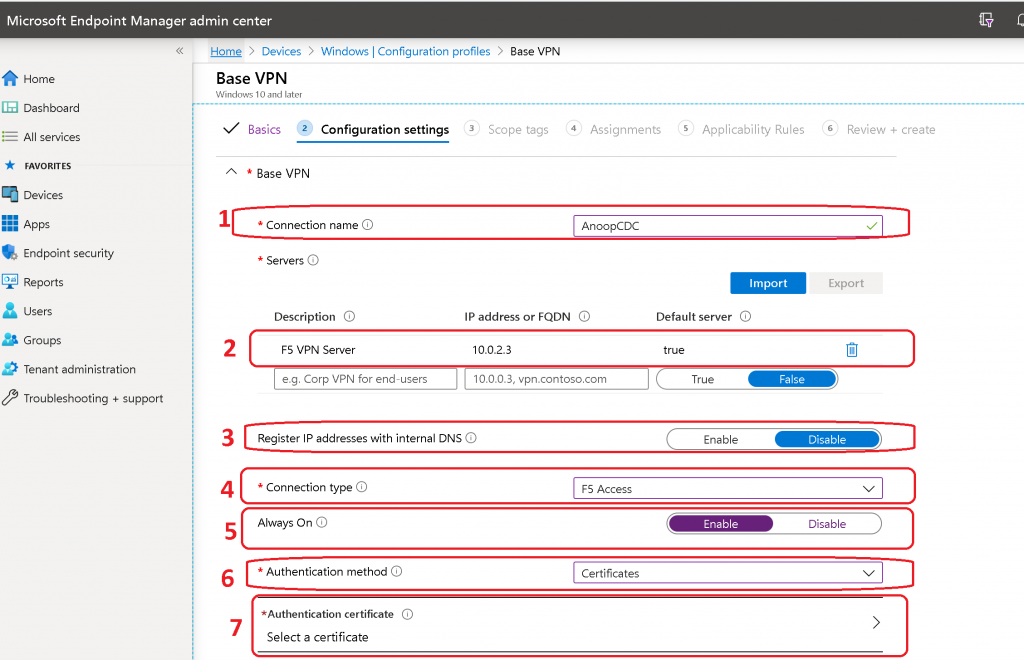
Apps & Traffic Rule for F5 VPN for Windows 10
- App and Traffic Rules (Optional Configuration)
- Associate WIP or apps with this VPN- Associate a WIP with this connection – Use WIP Options
- WIP domain for this connection – HTMD.com (Windows Information Protection (WIP) domain for this connection)
- Network traffic rules for this VPN connection – You can Add any network rules here if that is a requirement for you
NOTE! – Careful: By adding network rules, the VPN connection will be limited to only the rules specified. When adding traffic rules, make sure to add a catch-all rule that is least restrictive, to avoid VPN issues.

Conditional Access Configuration F5 VPN
- Conditional access for this VPN connection – Enable
- Single sign-on (SSO) with alternate certificate – Enable
- Name – Log-on
- Object Identifier – 1.7.6.1.7.1.311.20.2.6 Get the details from Certificate
- Issuer hash – 8750ffa928kksjdksjadaa41a32258bd0e73sdjhsjsdfsdfsd – Get the details from the certificate
- Single sign-on (SSO) with alternate certificate – Enable
More Details about Conditional Access & SSO with the alternate certificate is here.

DNS Configuration for Windows Always-On VPN
- Add the list of DNS suffix – DNS suffix search list
- ab.htmd.com
- ab.forum.htmd.com
- Name Resolution Policy Table (NRPT) rules – Click on the Add button to enter the details. Add | Import | Export
| Domain | DNS servers | Proxy | Automatically Connect | Persistent | NA |
|---|---|---|---|---|---|
| .htmd.com | Configured | NA | NA | NA | NA |
NOTE! – Indicates the namespace to which this rule applies. Enter either a fully-qualified domain name (FQDN) or a DNS suffix. Enter a period (.) at the beginning for a DNS suffix.

Proxy for Windows Always-On VPN Using Intune
- Use proxy server (Optional Setting) – Proxy used when the profile is active when there is a requirement that all the communication should go through the proxy.
- Automatic configuration script
- Address
- Port number*
- Bypass proxy for local addresses

Spilt Tunneling for F5 VPN
- Split Tunneling (Optional Setting) – Enable split tunneling if you only want certain web traffic to use the VPN tunnel. Disable this if you want all traffic to use the VPN tunnel when the VPN connection is active.
- Split tunneling – Enable / Disable
- Split tunneling routes for this VPN connection
- Destination prefix
- Prefix size
NOTE! – If you already specified the Name Resolution Policy Table (NRPT) rules, then the traffic flow is taking the path mentioned in the NRPT table? Another example of the slipt tunnel, a user in a hotel uses the VPN connection to access work files but uses the hotel’s standard network for regular web browsing.

Trusted Network Detection for Windows 10 Always-on VPN
Trusted network DNS suffixes (optional settings) is the option to auto-connect and disconnect VPN depending on the network connection. For example -When users are already connected to a trusted network, you can prevent devices from automatically connecting to other VPN connections.
Following are the 3 three trusted network detection:
- Always on
- App-based trigger
- DNS autotrigger
NOTE! – Enter DNS suffixes used to determine if the device is connected to a trusted network. If any of them are reachable by the device, the device will not automatically connect to the VPN, even if there are auto-triggers set.

- Click on NEXT button to continue with additional VPN configuration using Intune.
Additional Configurations for F5 VPN
I have configured Scope Tags, Assignments, and Applicability Rules for Always on VPN for Windows 10.
- Click on CREATE button to complete the Windows 10 Always on VPN profile configuration.

Results
Let’s check whether the F5 VPN configuration is deployed or configured on Windows 10 devices.

Resources

Anoop C Nair is Workplace Technology solution architect with 25+ years (as of 2026) of experience in global enterprise organizations such as JP Morgan, Capgemini, etc. Microsoft Certified Trainer (MCT). Microsoft MVP from 2015 onwards for consecutive 11+ years! He also conducts Intune and modern workplace tech training for enterprise organizations. He is Blogger, Speaker, and Founder of HTMD Community and HTMD Conference. His main focus is on Device Management technologies like Intune, Windows, Cloud PC. He writes about technologies like Intune, SCCM, Windows, Cloud PC, Windows, Entra, Microsoft Security.

Discussion